Learn how to install, configure, and master Load Flight features.
What is Load Flight?
Let's keep it simple: Load Flight is your flight sim's new best friend. It runs on your PC, hooks straight into MSFS 2020, MSFS 2024 or X-Plane, and turns every flight you fly into something that actually counts — you earn XP, level up your rank, stack real currency, and see other pilots and controllers flying alongside you in real time. It's not just "another add-on" — it's the whole structure behind your journey as a virtual pilot, with 7 aviation categories to pick from (from General all the way to Heavy) and a whole crowd of people flying with you.
How it "talks" to your simulator
No hassle, no complicated setup: the moment you open MSFS or X-Plane, Load Flight grabs the data straight away — position, speed, engines, lights, all of it. On MSFS that happens through SimConnect (Microsoft's official protocol); on X-Plane, through its own custom-built connection. Bottom line: your flight is tracked start to finish, with zero extra button-mashing on your end.
What's inside the system
Flight Dispatch — build your plan by hand, pull it from SimBrief, or import a .pln, then send it straight to IVAO/VATSIM before you push back.
Online Radar — a live map showing who's flying and who's controlling right now.
Your Career — rank, level, XP, hours flown, ratings, and the logbook of your whole flying history.
Market — buy and sell Coins (even peer-to-peer), ratings, brand new or used aircraft, and add-on modules to level up your experience.
My Bank Account — your money (real and virtual) all organized, with a full statement and PayPal withdrawals.
Affiliate Program — refer people with your code, they get a bonus, and you earn commission on what they spend.
Android App — get notifications straight to your pocket, and with the Sandbagging Addon, even a remote panic button to disconnect from the network without touching your PC.
Downloading and installing
Grab the installer straight from the homepage (the "Download for Windows" button), run the .exe, and that's it — it's a one-click installer, no clicking "next" a hundred times: the native progress bar just shows up on its own, and once it's done, Load Flight opens right up.
Your first screen: log in or create an account
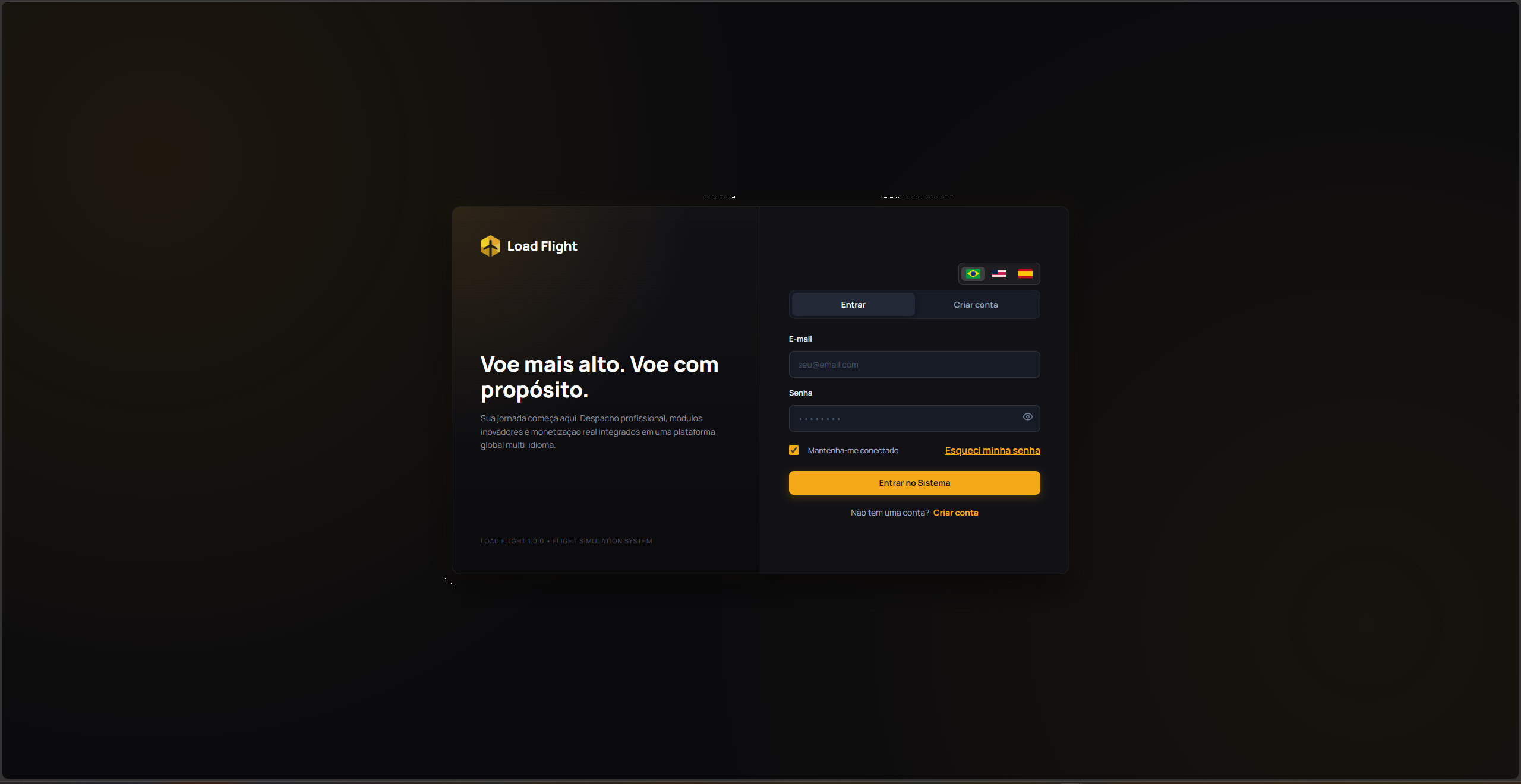
The moment it opens, you land straight on the entry screen. Two tabs: Log In (if you already have an account) and Create Account (if it's your first time). There are little flags in the corner to switch languages on the spot, no settings menu needed.
Log In — just email and password. Check "Keep me logged in" and the app securely remembers your login for next time you open it.
Forgot your password? — click "Forgot my password" and a 6-digit code lands in your inbox right away to reset it.
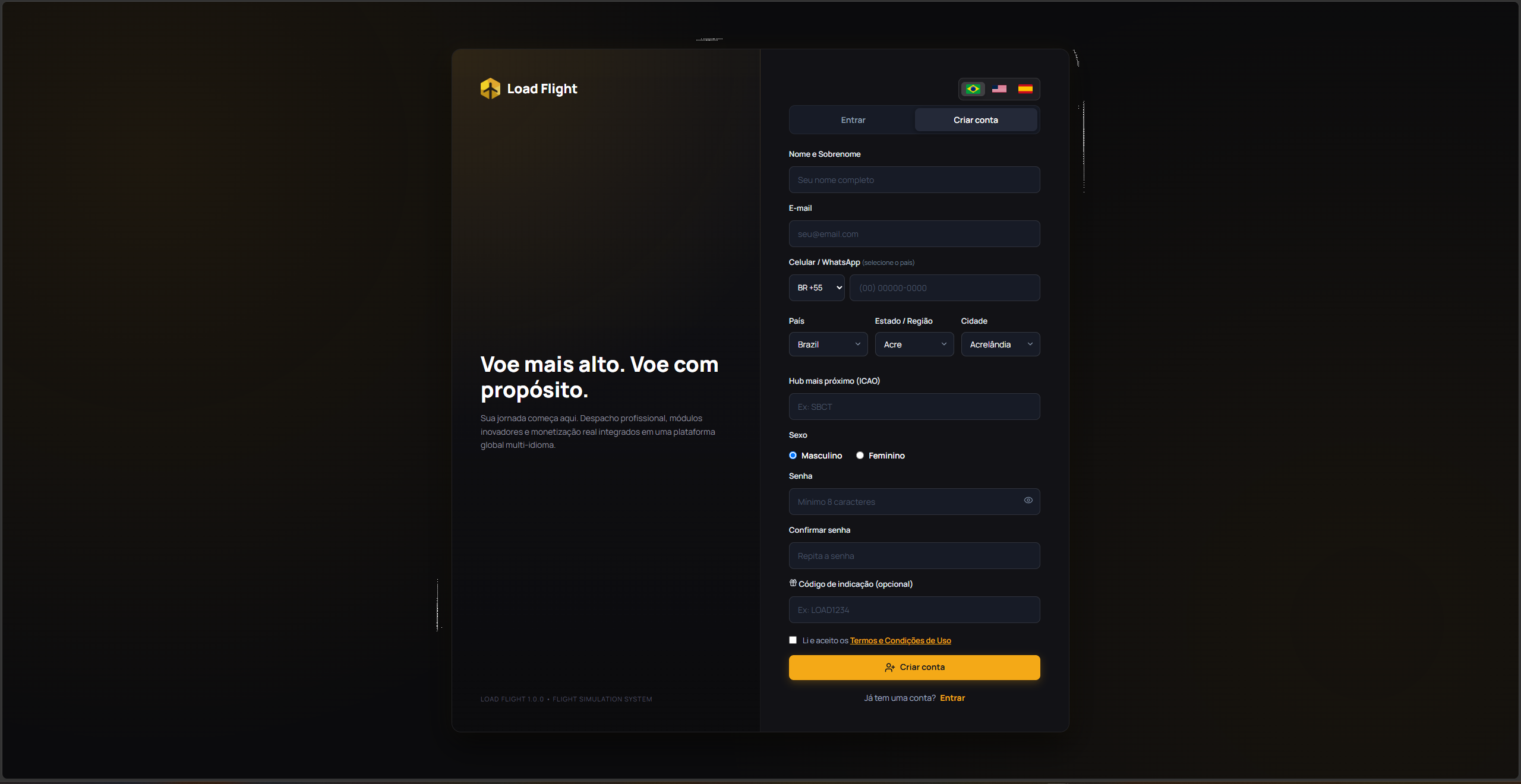
Creating your account
Fill in your full name, email, phone with country code, where you live (country/state/city cascading), and your preferred ICAO hub — the field confirms right away if the code is real, with that green ✓ VALID ICAO badge. Pick your gender, set a password (8+ characters already unlocks it, but go the extra mile: 10+ mixing letters, numbers and symbols makes it "Strong"), and accept the Terms of Use. Then just confirm the 6-digit code that lands in your email to fully activate the account — without it, login stays locked.
Two protections worth knowing about
One app at a time, per PC — trying to open it again just brings the already-open window to the front, instead of opening a second one.
One account at a time, across computers — if you log into the same account on another PC, the system warns you and asks whether you want to disconnect the other device or cancel.
Online Radar: your very first screen
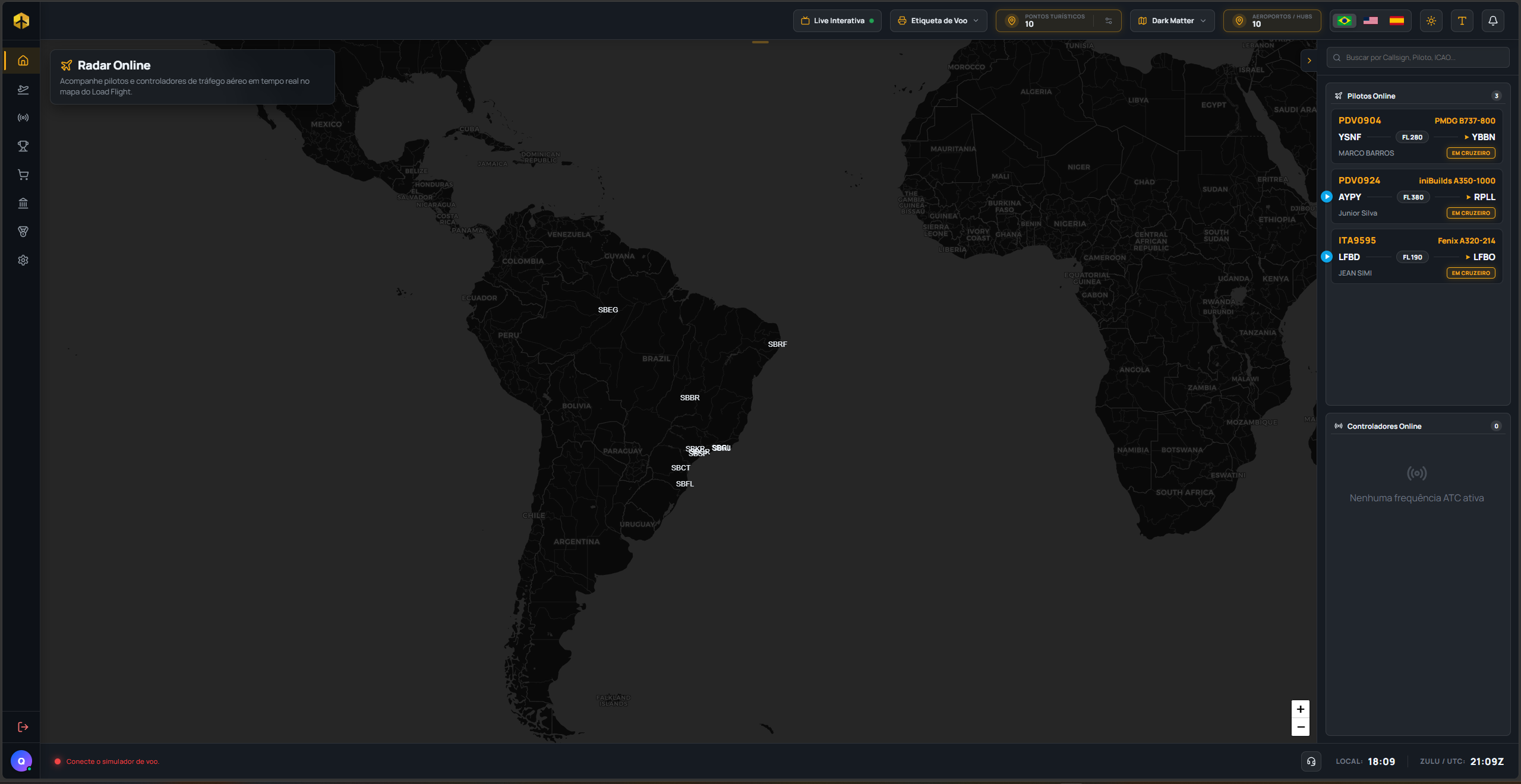
The screen you land on right after logging in is the Online Radar — a full-screen map showing who's flying and who's controlling right now, all in real time.
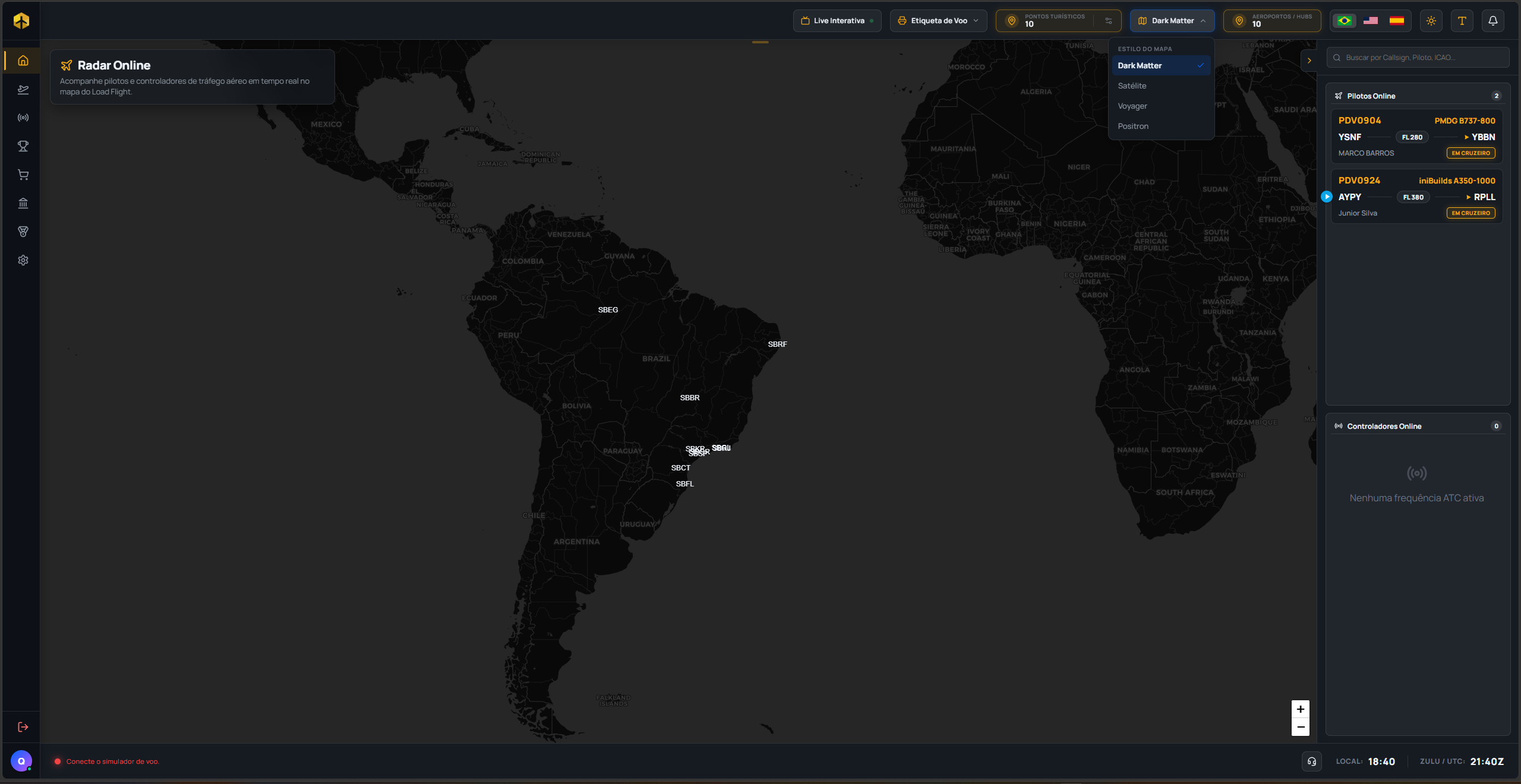
The map's look is entirely up to you
Click the "Map Style" selector up top and pick from 4 themes: Dark Matter (dark, great for night flying), Satellite (real high-definition imagery), Voyager (colorful and balanced), and Positron (bright, ideal for daytime).
Who's up in the air right now
On the right side sits the traffic panel, always visible: pilots online up top, active ATC frequencies below (Ground/Delivery, Tower/Radio, Approach, and Center) — or a calm "No active ATC frequency" when nobody's controlling.
Click to see the details
Click any card (or the plane icon straight on the map) and a HUD pops up at the bottom: callsign, the captain's name — clickable, takes you straight to their career page —, aircraft, route, altitude, speed, and heading. For a controller, it shows the position, frequency, control rating, and how long they've been online.
Header and footer, always within reach
Up top, the little flags swap languages instantly, light/dark mode is a single click, and the notification bell alerts you (with sound) about everything that matters — system notices, financial movements, dispatch, and account security. Down in the footer, the LED shows whether your simulator is connected (green = all good, red = close the other sim you have open or open yours), plus the LOCAL and ZULU clocks — always use ZULU on your flight plans.
Flight Dispatch: time to take off
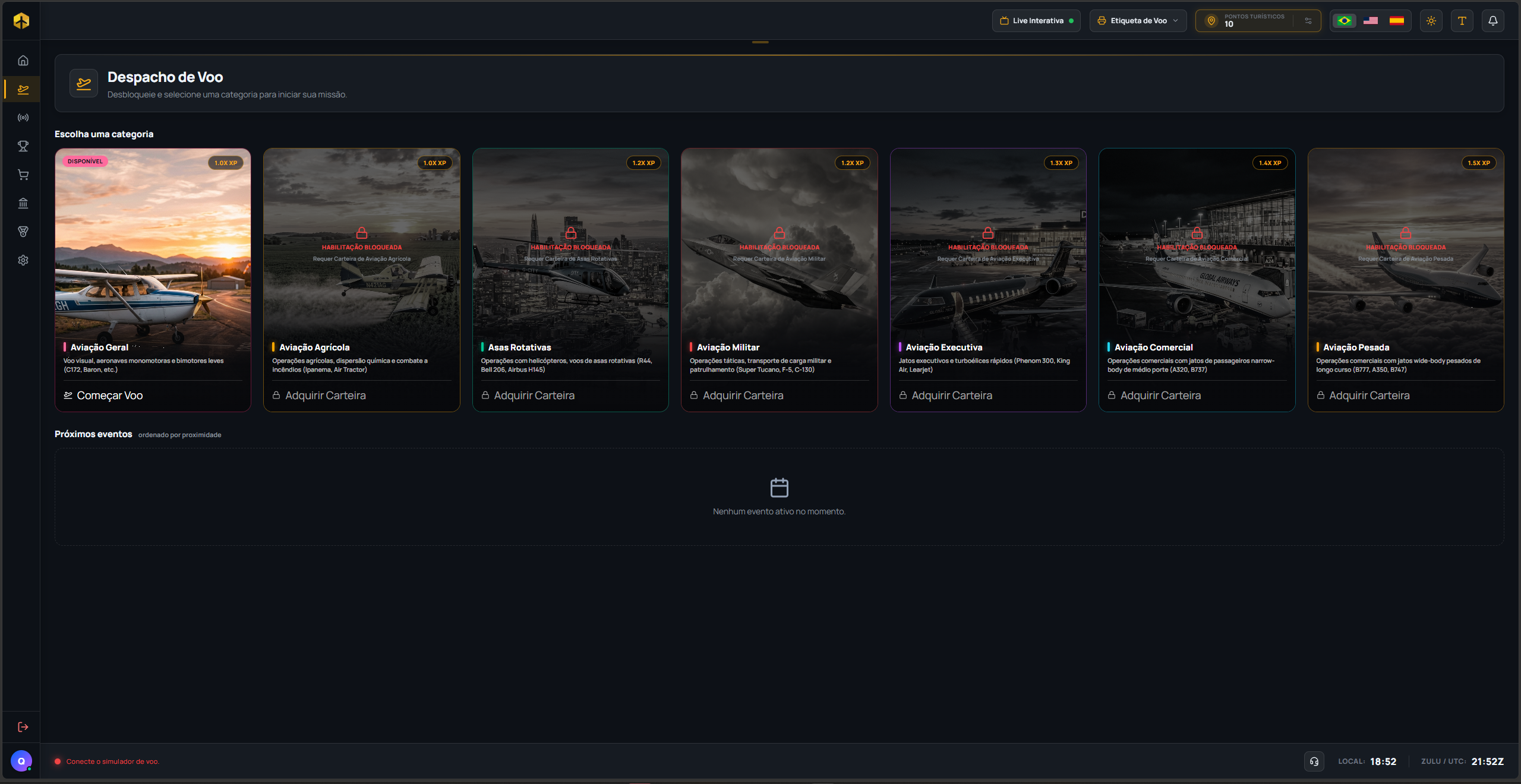
Right below Home in the sidebar sits Flight Dispatch — this is where you pick your mission category, build your plan, and actually kick off the flight inside the system.
The 7 categories, each with its own multiplier
General, Agricultural, Rotary Wing, Military, Executive, Commercial, and Heavy — the more demanding the category, the bigger the XP and Coins multiplier (from 1.0X on General up to 1.5X on Heavy). A category with no active rating shows up locked, with a direct shortcut to buy the rating in the Market.
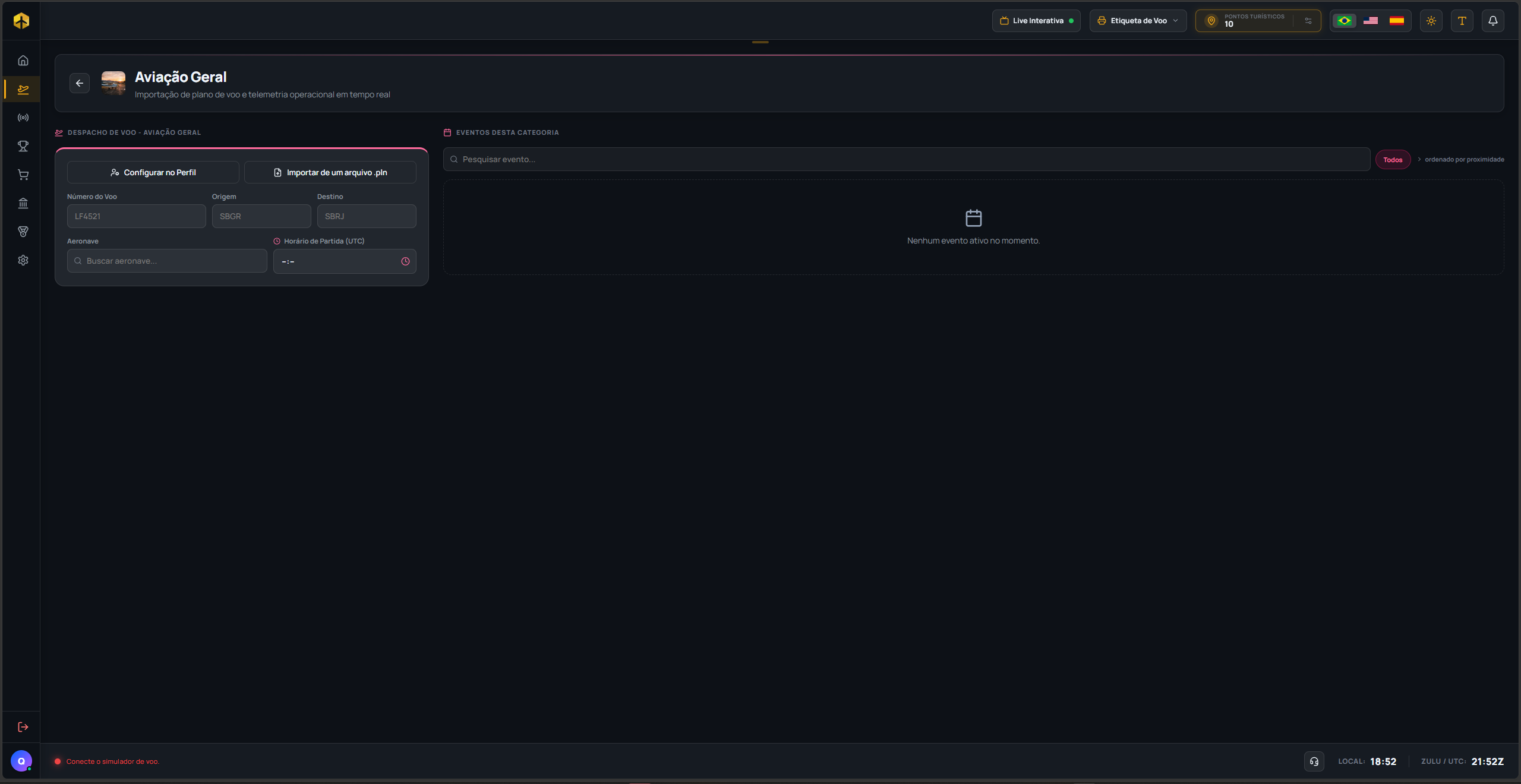
Building your flight plan
Three ways to fill it in — and you can even mix them: by hand (flight number, origin, destination, aircraft, and the time always in UTC), pulling your latest SimBrief plan (uses the Pilot ID saved in your Profile — if you haven't set it up yet, the button takes you straight there), or importing a .pln from your simulator.
Generate the plan, send it to the network, and take off
With the data filled in, "Generate Plan on SimBrief" creates the real route and unlocks a full preview: miles, flight time, estimated profit, fuel, and leasing fee (if the aircraft is a leased one). From there, the Send to IVAO/Send to VATSIM buttons open the network's site already filled with your plan, and Start Flight registers the dispatch and switches on telemetry — from that point on the system tracks your flight start to finish.
Active Flight Dashboard: your flight, live
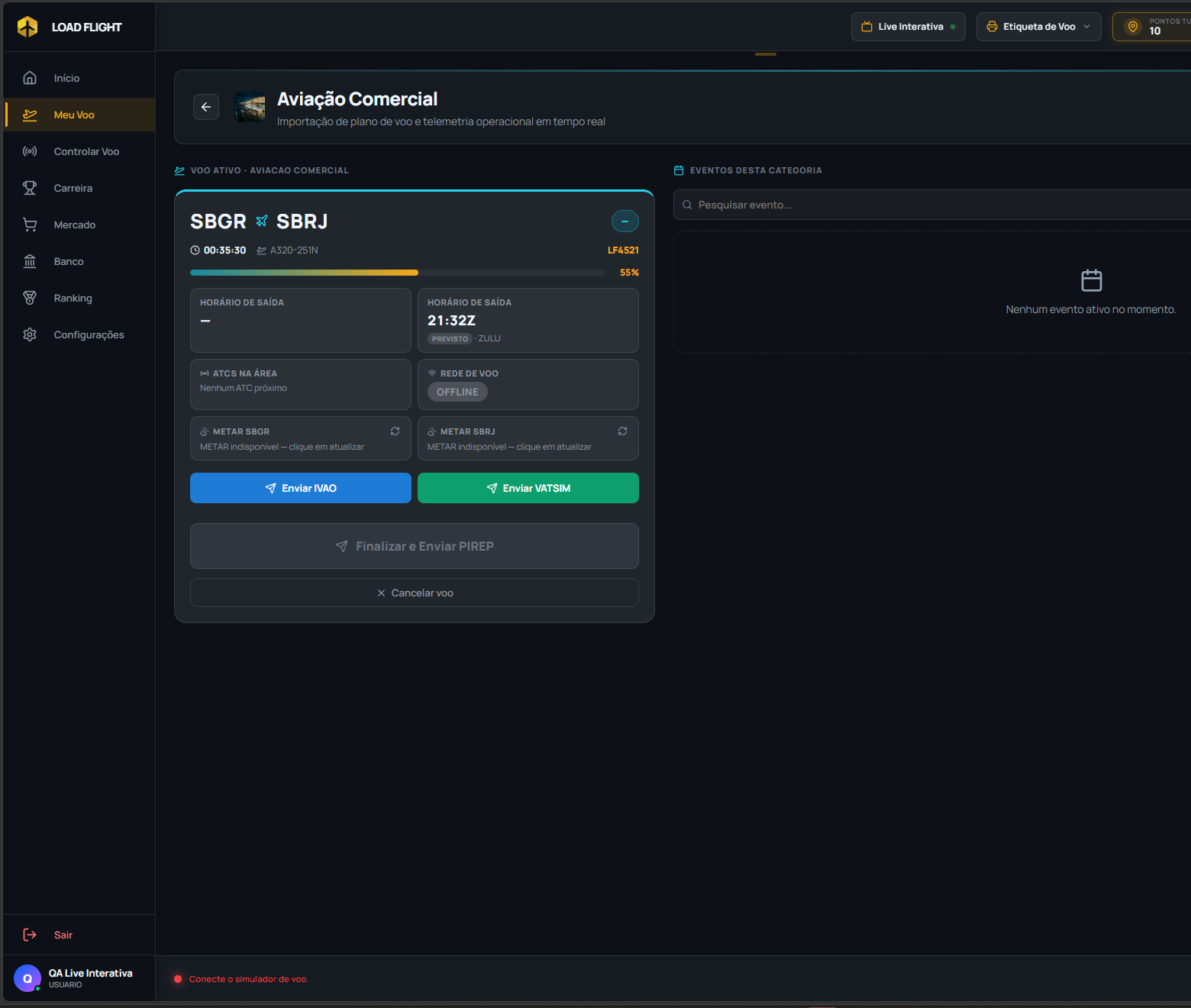
The moment you click "Start Flight", the dispatch form turns into this dashboard — everything here is live tracking. None of it decides your reward: the server calculates that on its own, straight from the simulator's real telemetry.
Progress Bar
As soon as you dispatch a flight, a bar with the phases (Boarding, Takeoff, Cruise, Landing...) pins itself to the footer and follows you across the whole system. It's got its own page with all the details — check out Progress Bar, in the menu on the side.
Simulated data just to illustrate the layout — not a real flight.
The route progress bar (inside the panel)
This one's different: it lives inside the Active Flight panel itself (not the footer) and shows your % of the route covered — calculated from the real distance to your destination while the simulator is sending your position, or from estimated time when there's no coordinate yet at all.
A card that changes on its own as the flight goes
The first card in the grid tells a different story at each stage: "Gate departure" (countdown) while you haven't actually moved yet → freezes at the real time the moment the aircraft leaves the spot → turns into "Expected landing" once you take off (already adjusted by how early or late you departed) → and once you land, it becomes the final "Landing time", with a hint of how early or late you touched down.
The SimBrief milestones and the rest of the grid
Next to it, a second card always shows the next milestone promised by your flight plan (Out, Off, On, or In) — click it to switch between Local and Zulu. The other cards bring the active controllers near you, the network your flight is running on (auto-detected), and the METAR for origin and destination, with a refresh button.
Forgot to file your plan with the network?
No problem — the Send to IVAO/Send to VATSIM buttons are still right here, so you can file the plan even with the flight already underway, no need to cancel anything.
Closing out the flight
There's only one real way to end it: the "Finish and Submit PIREP" button, which only unlocks once you reach the category's last phase (Disembark, or Post-Landing Taxi on categories with no disembark step). Closing the simulator on its own does not end the flight. Once you finish, a summary shows up with your rating, descent rate, and landing G, plus the full breakdown — gross, fuel, leasing (if applicable), event bonus, final net, and XP earned.
Progress Bar
It's that row of dots pinned to the footer, next to the clock, that shows up as soon as you dispatch a flight. It tells you which phase of the flight you're in right now — Boarding, Takeoff, Cruise, Landing... — and follows you across any page of the system, not just the Active Flight screen.
When it shows up (and disappears)
The bar only exists with an active flight. It's born the instant you click "Start Flight" on Dispatch, and vanishes as soon as the flight ends (PIREP submitted). With no flight underway, the footer stays clean, no bar at all.
When each phase lights up
Nothing here is manual — each dot lights up on its own, right on time, straight from your simulator's real telemetry. Here's how it goes, phase by phase, on a Commercial aircraft:
Boarding — lights up right away, as soon as you start the flight on Dispatch.
Pushback — lights up when the aircraft starts being pushed back by the tug.
Taxiing — lights up when you start moving under your own power toward the runway.
Takeoff — lights up during the takeoff roll, until the wheels leave the ground.
Climb — lights up as soon as you take off, and stays lit while the aircraft is gaining altitude.
Cruise — only lights up once you genuinely settle at your flight plan's cruise level (the same one from your SimBrief OFP) for a few seconds straight. It's not based on flight time — even a quick hop with a couple of minutes of cruise gets recognized.
Descent — lights up when you leave cruise and start losing altitude on purpose, heading toward your destination.
Landing — lights up on final approach, through touchdown.
Post-Landing Taxi — lights up as soon as you clear the runway and taxi to the gate.
Disembark — only lights up once the aircraft is fully stopped and all engines are off. Bringing speed to zero with an engine still running doesn't count.
Boarding
Pushback
Taxiing
Takeoff
Climb
Cruise
Descent
Landing
Post-Landing Taxi
Disembark
The bar in action on a Commercial aircraft: left to right, every filled-in dot has already been confirmed, and "Cruise" is the current phase, highlighted in gold.
The phases change depending on the aircraft's category
Not every aircraft goes through the same sequence:
Commercial, International, and Heavy: the full list above, with Pushback.
Executive and General: the same sequence, just without Pushback — smaller aircraft don't use a tug.
Rotary Wing: no Pushback, and "Descent" only shows up if the approach has a genuine descent — on a very smooth approach, the helicopter can go straight from Cruise to Landing.
Agricultural: Preparing → Taxiing → Takeoff → Climb → Descent → Landing → Post-Landing Taxi — no Cruise, and the flight ends at Post-Landing Taxi, no Disembark.
Military: same logic as Agricultural (Equipping instead of Preparing) — no Cruise or Disembark.
"Go-Around" is a ghost phase
If you genuinely go around — gaining altitude again during Landing instead of completing the touchdown — an extra node called "Go-Around" shows up on the bar, right between Landing and Post-Landing Taxi. On a normal landing that node doesn't even exist: it's not shown dimmed and waiting, it simply isn't drawn. It only joins the bar when the go-around genuinely happens.
Frequently asked questions
Can the bar go backward? Only in one case: from "Landing" to "Go-Around", if you genuinely go around. Otherwise it never regresses — even if telemetry blips for an instant, the system holds the phase until it's genuinely sure of the transition.
Why doesn't the bar light up a phase even though I already did that in the simulator? The system waits to confirm for a few seconds straight before lighting it up, so it doesn't get tripped up by a single stray data spike from the simulator. If you just did something (like settling into cruise), give it a few seconds — it lights up the moment it's sure.
Flight Penalties
Every flight starts with a score of 100 — and that same score decides how many Coins, how much XP, and how many stars you earn at the end. Anything that goes wrong during the flight deducts points from it. Here's everything that can bring your score down, including what changed today.
How the flight score works
It's not three separate calculations — it's one. The system starts at 100, deducts points as each issue is detected in your flight's real telemetry, and whatever's left becomes, at the same time, your rating (the stars in the summary), your Coins, and your XP for that flight. A lower score reduces all three together.
Infraction-based penalties
Each of these, if it happens during the flight, deducts points from your score — the exact amount varies by aircraft category (a commercial aircraft has different rules from a helicopter, for example, and not every category has every rule below):
Beacon off when starting the engines.
Nav light off during the flight.
Taxiing without the taxi light on.
No landing lights at takeoff or at touchdown.
No strobe light at takeoff or at touchdown.
Landing with the gear up.
Gear still up 30 seconds or more after takeoff.
Sustained overspeed — this is the one that changed today: it used to be that a single instant of exceeding the speed limit was enough to penalize you; now it only counts if the overspeed lasts 30 continuous seconds or more. A quick spike no longer penalizes.
Hard landing (G-force) — four levels, from "Uncomfortable" to "Terrible" as the impact gets harder. Only the highest level you hit counts, they don't stack.
The exact points for each can be adjusted by the team, so treat the numbers as a reference, not something fixed forever — what doesn't change is the logic: small mistakes cost little, dangerous ones cost more.
Starting score100.0
Hard landing (G-force)-12.0
Sustained overspeed-8.0
Final flight score80.0 ★★★★☆
Exactly how it shows up in the flight summary: each penalty eats into a slice of the starting 100 points, and the final score becomes your stars, Coins, and XP.
Leaving the gate too early or too late
Your flight plan has a scheduled departure time. Punctuality is measured at gate departure — the moment the aircraft starts moving (pushback or taxi), not the takeoff — with a 15-minute tolerance for late departures and 30 minutes for early departures. Leaving the gate outside that window deducts points from the score — it does not block the flight, it just costs a penalty. If the system does not record the gate departure moment (old app version), the reference falls back to the takeoff. This rule applies since 2026-09-13: until then the reference was the takeoff, which punished pilots who left on time but spent longer taxiing — flights penalized for that in the previous 30 days were refunded automatically.
Manipulating simulator time zeroes everything out
Speeding up the simulator's time rate during a dispatched flight zeroes out Coins, XP and score for that entire flight, in any phase. Slew follows the same rule only with the aircraft airborne: on the ground (gate, pushback, taxi) it is a legitimate tool and doesn't count. These are the "all or nothing" penalties on the list.
Landing at the right airport, and on the runway
Rule published on 16/09/2026 (the first days run in observation mode, only recording, before anyone is rejected): the system checks where the aircraft touched down on the flight's last landing.
Destination or alternate — the landing is only accepted at the dispatch's destination airport or at the declared alternate (5 nm radius from the reference point). At any other airport the flight closes with zero and the notice "Landed at the wrong airport". Enter the alternate in the dispatch (it comes from SimBrief automatically) if you might divert.
Off the runway is an accident — if the simulator doesn't place the aircraft on a runway at the instant of touchdown and the position is more than 10 m past the edge of the nearest runway, the flight is recorded as an aircraft accident and closes with zero. An owned aircraft goes straight to landing-gear maintenance, and the repair is on you. On leasing you only lose the flight. Helicopters land on helipads and are outside this rule.
Accident evidence — on an off-runway touchdown the app keeps an image of the simulator window (1920x1080), attached to the accident record and shown in the aircraft's maintenance report.
Unconfirmed network presence
If you dispatched a flight on the network (IVAO or VATSIM) but the system can't genuinely confirm you were online for most of the route, your Coins and XP for that flight come out reduced — as if the flight had been flown offline.
When the flight doesn't even get paid
Before calculating any penalty, the system checks whether the flight's recorded data makes sense — enough telemetry points, a minimum flight duration, a genuine landing recorded, nothing at an impossible speed. If this basic check fails, the flight is rejected entirely — it isn't paid at a discount, it simply doesn't count. Since 16/09/2026 the app shows the exact reason for the rejection — for example how many miles the position jumped and in which phase — instead of a generic notice.
What is NOT a penalty
Two things that tend to raise questions, but don't affect your flight's normal payout:
A different aircraft than the plan expected — the system logs the mismatch, but never blocks the flight or deducts points for it.
Not qualifying for an event's bonus — that only removes the extra 30% bonus for that specific event; the flight's normal payout stays intact.
Control Flight
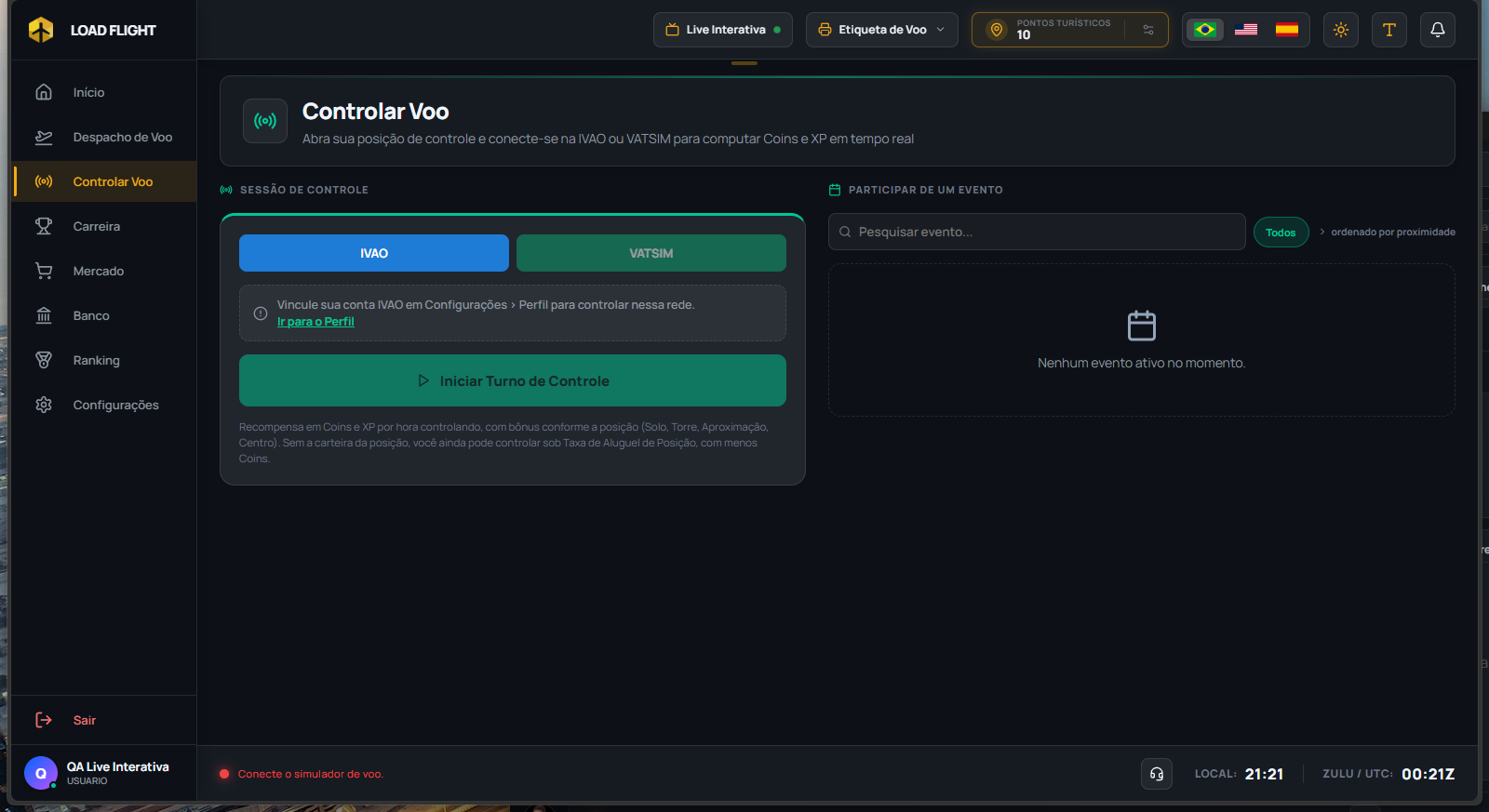
This is the page for anyone who's also an air traffic controller on IVAO or VATSIM. You connect as a controller directly on the network, open this screen, click "Start Shift" — and the system confirms on its own that you're online, in the right position, and starts counting Coins and XP per hour of control. No typing a position, no clicking anything during the shift.
The screen before starting a shift: pick the network, link your account if you haven't yet, and the "Start Control Shift" button unlocks as soon as the system finds you online.
How to start a shift
First pick the network (IVAO or VATSIM) at the top of the screen. Then:
Account linked? If your VID (IVAO) or CID (VATSIM) isn't saved yet under Settings → Profile, a warning shows up with a direct shortcut to get there.
Automatic confirmation — the system asks the network every 20 seconds whether that VID/CID is connected as a controller RIGHT NOW. Once confirmed, the "Start Control Shift" button unlocks on its own, showing the position and frequency you're already controlling.
There's no field to type in a position — the system uses the exact real position you're already connected to on the network, so you can't "declare" a higher position than you're actually controlling.
During the shift
While the shift is running, the screen shows a timer, your position, and the network — and there's a multi-layer safety net:
You can close the app without worry — the time that counts is measured by the server, not your PC's clock. If you close and reopen with the shift still open, the timer picks up right where it left off.
Left the network without ending the shift? If you disconnect from IVAO/VATSIM and don't come back, the shift ends on its own after about 2 minutes — even with the app minimized, since that decision runs in the background. You get a warning with a countdown before it happens.
Extra safety lock — even if the app crashes or the PC shuts down with the shift still open, the server closes the session on its own after a few minutes without hearing from you, always within an 8-hour shift ceiling (sessions longer than that get held for manual review, never auto-closed).
What if I don't own that position's license?
No problem — you're not locked out. Without the right license (Ground, Tower, Approach, or Center, depending on the position) or an active VIP Trial, you can still control normally under the "Position Rental Fee": your XP stays at 100%, only the shift's Coins come reduced. It's the system's way of letting you try the position before deciding to buy the real license.
Joining an event as a controller
The same event list that shows up on Dispatch also shows up here — except instead of confirming attendance as a pilot, you're booking a control position. Here's the flow:
Pick the position — a menu shows the event airport's real positions, with the ones already booked by another controller shown disabled.
Confirm on the network's official site — clicking "Book" opens IVAO's or VATSIM's booking site so you can make the official reservation there, then asks whether you confirmed it. It's a self-declaration — neither IVAO nor VATSIM currently offers a way for Load Flight to check this on its own.
Forgot to confirm? The booking stays marked as pending, with a reminder to come back and confirm later.
Punctuality on booked events pays off
If you booked a position for an event and start your shift within a few hours of the agreed time, that session gets linked to the booking — and being punctual (showing up on time and controlling for at least 1 hour) earns more Coins than showing up late or leaving too soon. The exact percentages can vary by season, but the logic is always the same: on time and with staying power earns the full amount. XP is never affected by this, only Coins.
Reward for accumulated control hours
Every 100 accumulated control hours (up to 1000 hours), you earn an automatic badge — a popup lets you know the moment you hit the milestone, sound effect and all. Once accepted, it's stored on your Career page, under "My Rewards".
Where your shift history lives
This screen only shows the shift currently running. The full history of past shifts — position, network, duration, Coins earned on each — lives on the Career page, right next to your Logbook.
Career
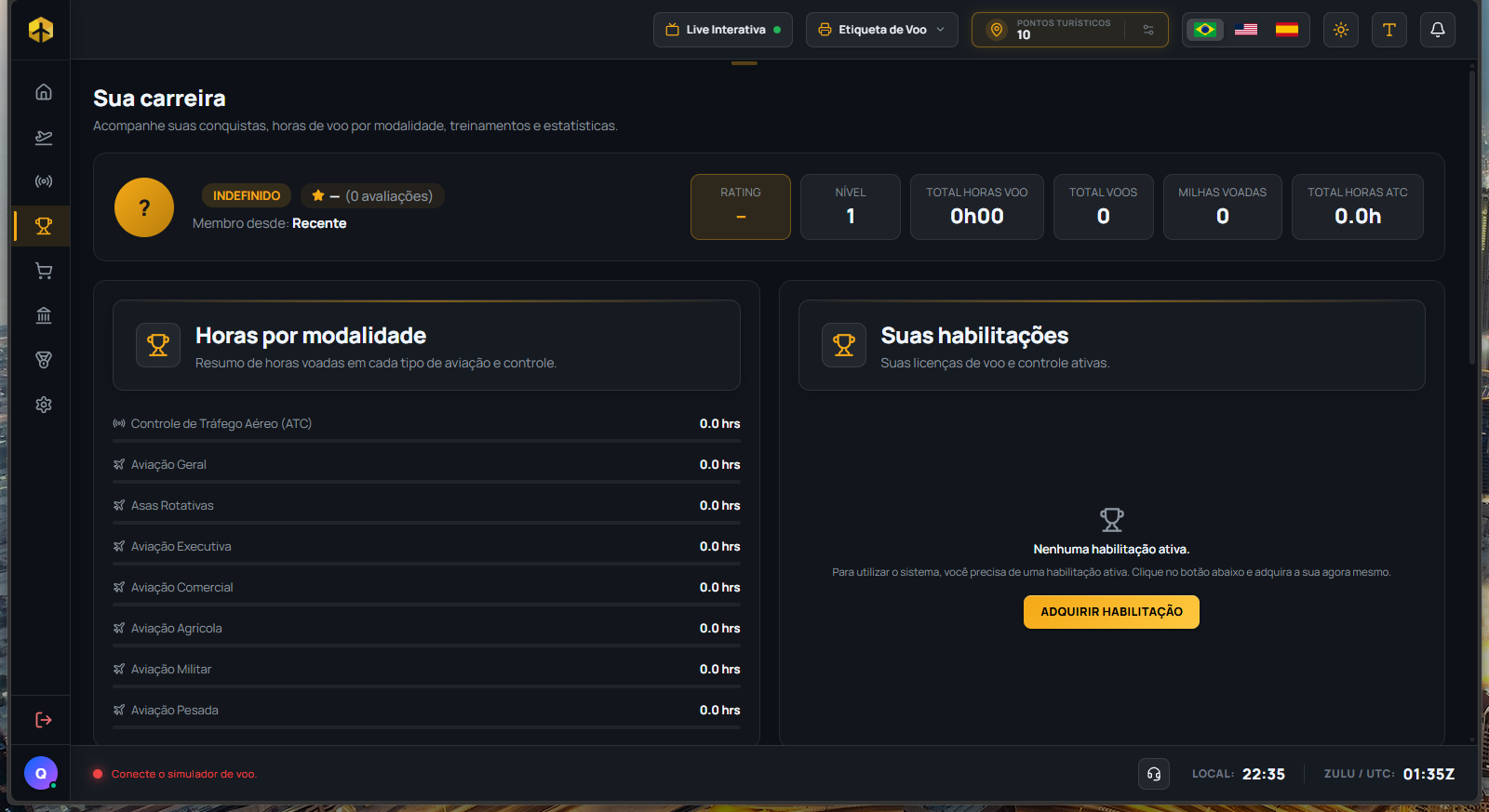
Your pilot page (and controller page, if that's you too): rank, level, licenses, modules, rewards, route map, and the full history of everything you've flown or controlled. This is where you come to see your real progress.
The top of your Career page: rank, Rating, level, hours, and miles — all calculated straight from the server.
Your profile and rank
At the top sit your main numbers: Rating (a technical 0-10 score calculated from your rated flights — shows "--" until you have any), Level, Total Flight Hours, Total Flights, Miles Flown, and Total Control (ATC) Hours. Next to that, your average star rating (from other users) and review count.
XP bar — shows how much is left for the next rank, or "Max level reached" once you hit the top. There are 10 levels, with two name sets: a Pilot track (from Cadet to Air Marshal) and a Controller track (from ATC Trainee to ATC Director).
Which track shows up for you — if you have an active Pilot license, your rank follows the Pilot track, even if you control too. The Controller track only shows up if you have only a Controller license, with no active Pilot license.
Your licenses and modules
Two cards below your profile show, side by side, your active licenses (with their expiry date — in red if already expired) and the modules you've bought on the Market. With no active license, a button takes you straight to get one.
Your rewards
Every badge you've earned lives here, in a grid. It's not just event prizes — there are five different kinds:
Event rewards — for taking part in an official Market event.
Ranking rewards — for placing well in the monthly Ranking.
License-level rewards — for leveling up a license.
Flight-count rewards — milestones for completed flights.
Control-hours rewards — every 100 accumulated ATC hours.
You can pin up to 3 rewards at the top — they get a little gold number and show up first. Trying to pin a 4th opens a screen asking which of the three already pinned you want to swap out.
Route map
A dark world map tracing, with curved lines, every route you've ever flown — with a period filter, same as the Logbook.
Logbook
The table with all your flights: date, route, aircraft, network, duration, distance, net pay, XP, status, and rating. There's search, a status filter, and a period filter. Clicking the eye icon on any row opens a full summary of that specific flight — descent rate and landing G, plus the detailed financial breakdown (gross, fuel, leasing, event bonus, penalties, final net). With no flights yet, this box doesn't even show up on screen.
Control history
If you also control, your finished ATC shifts show up here next to the Logbook, in the same table style: position, network, duration, Coins, and status for each shift. Only shows up after your first shift.
Training
Reserved space for Load Flight's future training Academy — empty for now, waiting on launch.
My Fleet
This page only shows up in the menu once you've bought your first aircraft. It's where you track wear, send an aircraft in for maintenance, and decide what to do with each one that's truly yours — sell it to the Bank or list it on the Market for another pilot to buy.
Filtering your fleet
Category pills at the top (General, Agricultural, Rotary, Military, Executive, Commercial, Heavy) plus free-text search by model or registration — handy once your fleet grows.
Each aircraft's card
Every aircraft gets a card with photo, registration, model, and manufacturer. A "Listed" seal shows up if it's already for sale on the Market, and a red "Under Maintenance" seal if the landing gear or engine has hit its wear limit.
PT-LFAAirbus A320-214 · Comercial
Trem de Pouso
82%
Motor
45%
Replica of an aircraft card — landing gear and engine with a colored wear bar (green/yellow/red).
Maintenance — landing gear and engine
Each aircraft has two wear bars (landing gear — only on aircraft with a normal retractable gear, doesn't show up on Rotary Wing — and engine, that one always shows). Green above 75%, yellow above 40%, red below that.
Repair with Coins or Dollars — click the gear icon and pick your payment method. The cost is fixed per aircraft category, it doesn't scale with how worn the part is.
Already in perfect shape? If you try repairing a part that's already at 100%, the system lets you know there's nothing to fix there.
Too much wear blocks takeoff — once the gear or engine crosses the category's safety limit, that aircraft gets flagged "Under Maintenance" and can't be dispatched until you get it repaired.
Aircraft accident — an off-runway landing with an owned aircraft sends the landing gear straight to its limit: the aircraft goes "Under Maintenance" immediately and only flies again after the repair.
Report — an aircraft under maintenance gets the Report button: a document with identification, wear x limit, flights flown (date, time, route, landing airport, vertical speed, G), hardest landings, previous maintenance and, in case of an accident, route, airport and the enlargeable accident image.
How wear is calculated
The rules are the same for every pilot and depend only on the aircraft category. The limits were designed as 100 landings at an average rate typical of the category: 150 fpm in general aviation, 250 fpm in executive/commercial and 350 fpm in heavy.
Landing gear — every time the wheels touch the runway, the descent rate (in fpm, unsigned) is added to the accumulated wear. Each touchdown counts for at most 2,000 fpm, touch-and-goes count too, and touchdowns recorded with slew active are ignored. Commercial example: 100 landings at 250 fpm = 25,000 fpm = gear at the limit; landing at 125 fpm, the same gear lasts about 200 landings.
Engine — counts the time with at least one engine running during the flight (engine hours). Gaps of 5 minutes or more without telemetry are not counted.
G-force does not wear the aircraft — it still counts for the landing score and penalties (above 1.40 G is already considered uncomfortable), but it is not part of gear or engine wear. Wear also does not depend on the number of flights: a flight with several touchdowns wears the gear more than a flight with a single one.
Only flights with your own aircraft cause wear. Leasing flights and VIP Trial test flights do not count.
When the limit is reached the component drops to 0% and the aircraft is marked "Under Maintenance" (it cannot be dispatched). The repair has a fixed cost per category and resets that component's accumulated wear — counting starts again from zero.
Category
Gear limit (summed fpm)
Equivalent to (gear)
Engine limit (engine-running hours)
Gear repair
Engine repair
General
15.000
100 landings averaging 150 fpm
500 h
$5 / ¢5.000
$5 / ¢5.000
Agricultural
15.000
100 landings averaging 150 fpm
500 h
$5 / ¢5.000
$5 / ¢5.000
Military
15.000
100 landings averaging 150 fpm
500 h
$5 / ¢5.000
$5 / ¢5.000
Rotary Wing
No gear wear
—
500 h
—
$10 / ¢10.000
Executive
25.000
100 landings averaging 250 fpm
1.000 h
$8 / ¢8.000
$8 / ¢8.000
Commercial
25.000
100 landings averaging 250 fpm
1.000 h
$8 / ¢8.000
$8 / ¢8.000
Heavy
35.000
100 landings averaging 350 fpm
1.500 h
$10 / ¢10.000
$10 / ¢10.000
Maintenance limits and costs per aircraft category.
Flights, hours and usage since the last overhaul
Each aircraft card shows how many flights it has flown and its total flight hours (across every owner it has had — the history follows the aircraft, not the pilot). Each bar also shows the usage since the last overhaul, with the category limit: for example "Engine hours: 339 / 1,500 h" or "Accumulated wear: 10,886 / 35,000 fpm". The same information appears on used aircraft listings in the Market, so you know exactly what condition the aircraft is in before buying.
Selling to the Bank
A quick, guaranteed sale: the Bank pays 50% of a brand-new aircraft's price for that same model, always in Coins. It asks for confirmation first (there's no undo — the aircraft is removed from your fleet and its registration frees up for another pilot to use). You can't sell to the Bank while it's listed on the Market — cancel the listing first.
Listing on the Market (for another pilot)
You set a description and a price in Dollars, and the aircraft becomes visible for other pilots to buy — no fee taken on top of what you ask. While it's listed, it carries the "Listed" seal and maintenance/Bank-sale actions are blocked; you can cancel the listing anytime and it goes back to normal.
Market
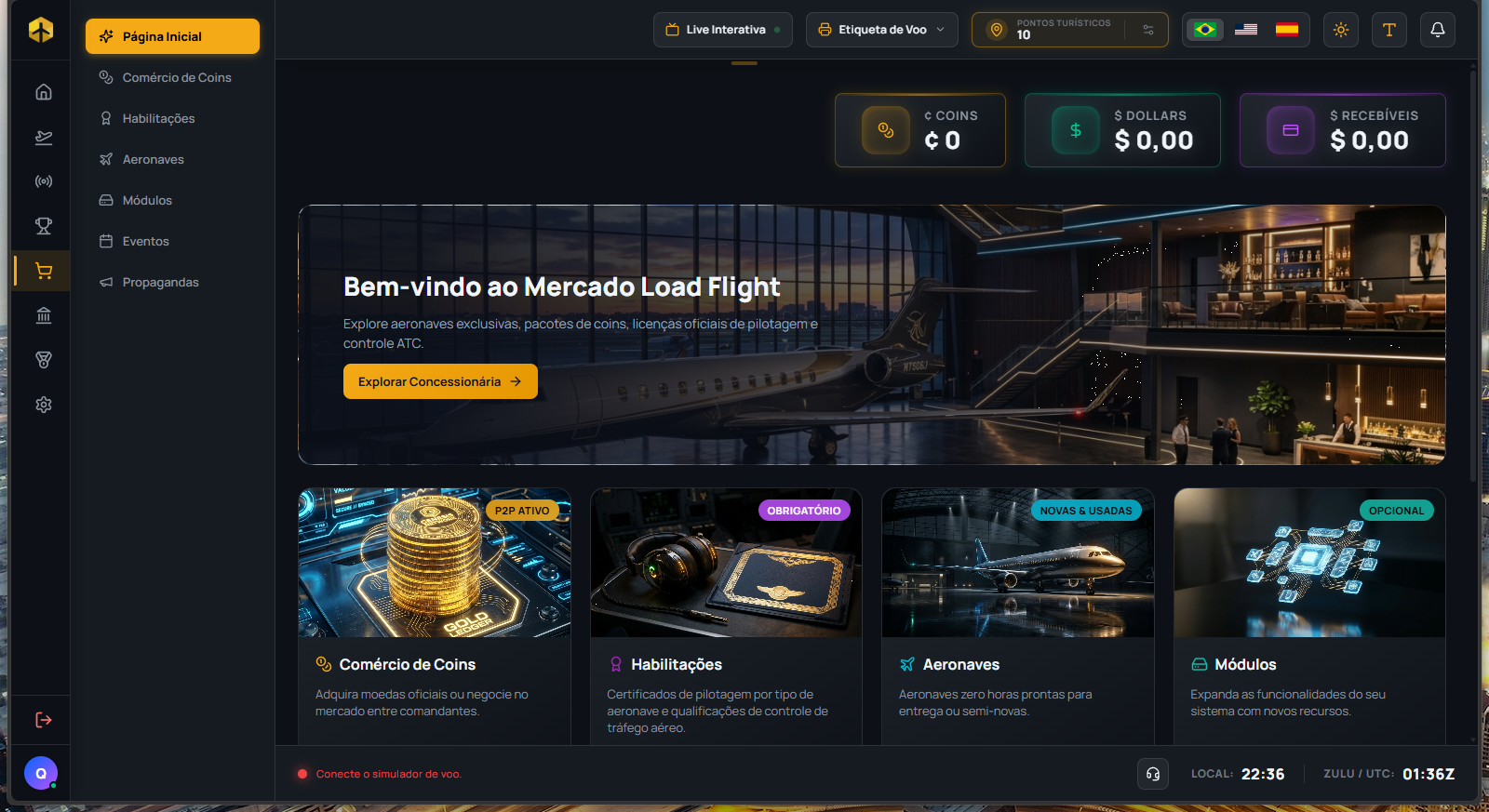
The hub for everything involving money and purchases in Load Flight — Coins, Ratings, Aircraft, Modules, Events, and Ads, each in its own tab. The home tab shows storefronts with Coin promos, featured modules and aircraft, and upcoming events — always hiding what you already own or have already joined.
The Market's home tab — your balances up top, a featured banner, and the 4 main categories.
Coins — the game's currency
You buy Coins straight from the Bank or from other pilots selling their surplus (P2P), all in one single list, with your own listing always shown first. You can sort by price or by promotion. Some packages have limited stock and simply disappear from the storefront once sold out. To keep prices realistic, the system enforces a floor and a ceiling on what pilots can charge each other for Coins.
Ratings
Pilot, Controller, and Instructor licenses, each valid for 6 months — the screen shows "Expires" in green or "Expired on" in red once the date has passed. The price can come discounted depending on how many licenses you already hold in the same category.
Aircraft
Toggle between New and Used aircraft (the latter listed by other pilots from their own My Fleet), sortable by price, name, or best-selling. When buying, you pick the registration (AA-AAA format) and pay in Coins or Dollars — aircraft carrying the homologation seal have already been confirmed working with the simulator's major add-ons. Used listings show each aircraft's real condition before you buy: landing gear and engine bars, number of flights, flight hours and usage since the last overhaul (see "How wear is calculated" in My Fleet).
Modules
Standalone add-ons (like Live Interaction, Cabin Audio, Thermal Printer, and others) that you buy once and stay active on your account. Each one's description shows up automatically in your language.
Events
A showcase of official events created by other pilots or by the Load Flight team — group flights over IVAO or VATSIM, with a 30% pay bonus for anyone who takes part within the rules.
Two confirmations are needed for the bonus, not one — booking your spot here on the Market is only the first. You also need to confirm attendance/check in on the Dispatch screen within the event window (from 2h before to 3h after); without that second step, the flight still counts, but the event bonus doesn't.
Anyone can join the team — any pilot can create an event, with their own date, route, network, and cover image; ones created by others show up in this same showcase as their date approaches.
Ads
Advertising space inside the system itself — two formats, RAIL (vertical, along the screen's sides) and BANNER (horizontal). You create one in a few steps: image, text, where it shows up, and for how long.
Price scales with reach — the bigger the area (city, state, country, or worldwide) and the longer it stays on screen per session, the pricier; the value is always calculated per day of run time.
Where it doesn't show up — to keep the experience clean, the RAIL format never shows on Home, Settings, inside the Market itself, on Dispatch screens, or on Control Flight.
When your Dollar balance isn't enough
If your current balance doesn't cover a Dollar purchase in full, the system uses what you already have and opens a secure external window (Xsolla) just to cover the difference — no need to cancel the purchase and start over.
Ratings
Each rating (license) unlocks flying or controlling in certain categories, and buying a "bigger" one already unlocks the smaller ones too — no need to buy each one separately. They're all for sale on the Ratings tab of the Market, last 6 months, and the more you've already invested, the cheaper the next one gets.
Pilot Ratings
Buying a pilot rating automatically unlocks every "smaller" category under it — the purchase grants everything at once, you don't need to buy one at a time to build up the combination:
Rating
Unlocks flying in
Price
General
General Aviation
$6 / ¢6.000
Rotary Wing
Rotary Wing
$8 / ¢8.000
Agricultural
General and Agricultural Aviation
$10 / ¢10.000
Military
General and Military Aviation
$12 / ¢12.000
Executive
General and Executive Aviation
$14 / ¢14.000
Commercial
General, Executive, and Commercial Aviation
$22 / ¢22.000
Heavy
General, Rotary Wing, Executive, Commercial, and Heavy Aviation
$30 / ¢30.000
Current Market prices — Rotary Wing is the only one that doesn't unlock any other category besides itself.
Controller Ratings (ATC)
Here the logic is layered: each license unlocks controlling at its own position and at every position "below" it.
Rating
Unlocks controlling in
Price
Radio & Delivery
Radio and Delivery
$6 / ¢6.000
Ground
Radio, Delivery, and Ground
$8 / ¢8.000
Tower
Radio, Delivery, Ground, and Tower
$10 / ¢10.000
Approach
Radio, Delivery, Ground, Tower, and Approach
$15 / ¢15.000
Center
Radio, Delivery, Ground, Tower, Approach, and Center
$20 / ¢20.000
Current Market prices.
How the discount works
You don't need to buy in a "correct" order — the system adds up everything you've already spent on any Pilot rating (or Controller rating, tracked separately) and uses that to knock down the price of the next one you buy in that group, down to a floor of 20% of its full price. The more you've already invested, the cheaper the next one gets.
No license? You can still control
This part only applies to the Controller side: with no license at all, you can still control any position, just paying the Position Rental Fee — reduced Coins, normal XP. Buying a position's license exempts you from that fee at it and at every position below it. See the full details on the Control Flight page.
Ranking
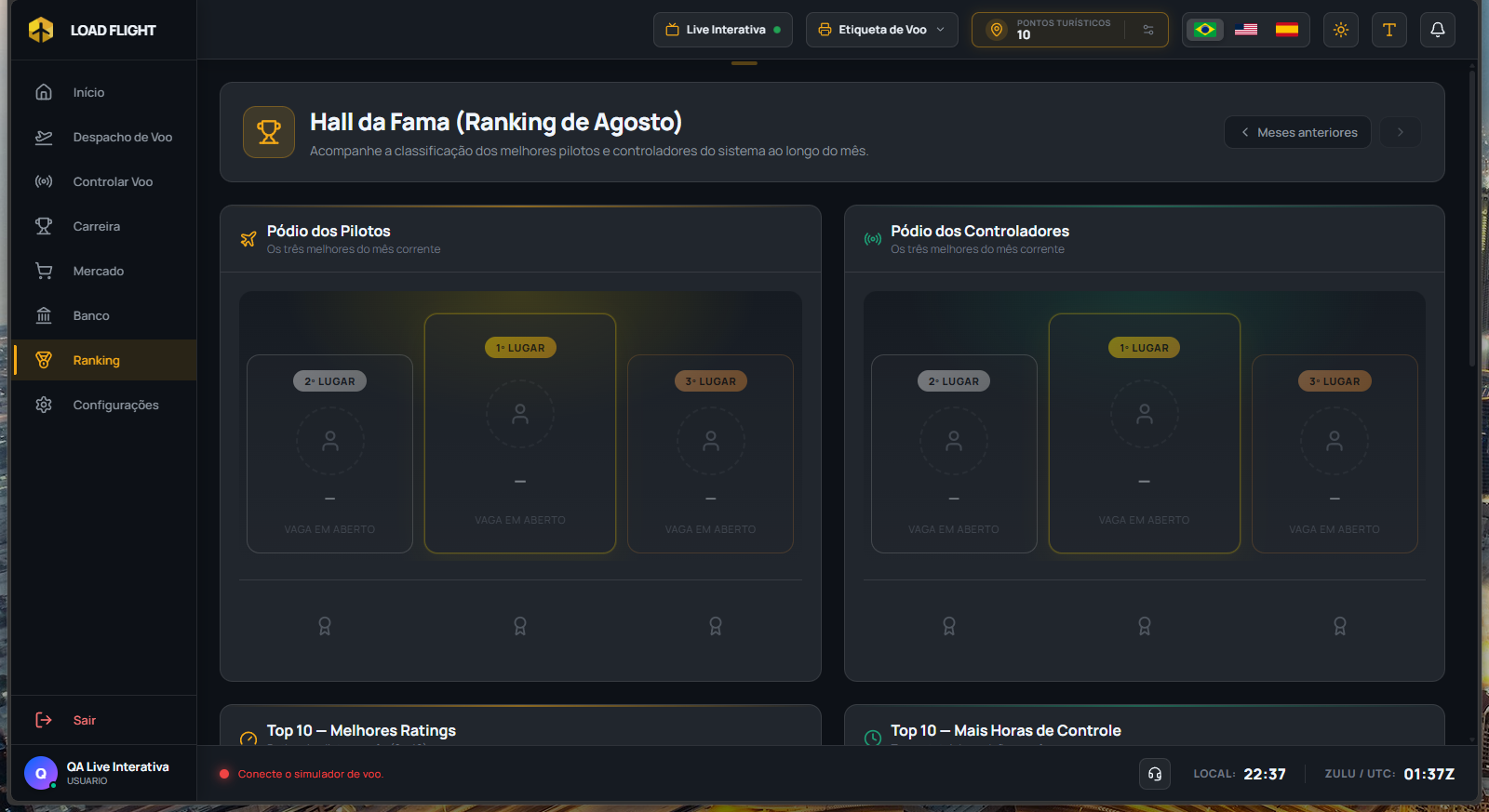
Load Flight's monthly Hall of Fame — pilots and controllers side by side. At the end of each month the standings freeze (become a final, already-awarded snapshot) and a new month starts from zero.
The pilot and controller podiums side by side — an empty spot shows up as "Spot Open".
Podium and prizes
Top 3 pilots and top 3 controllers, on a visual podium — click any name to jump straight to that person's Career page. Without enough people to fill all 3 spots, "Spot open" shows instead. Below the podium, a prize strip (gold/silver/bronze) shows the Coin bonus for each position — but heads up: the prize doesn't just land in your account, a prompt shows up for you to accept or decline it, and declining is final (you lose both the badge and the bonus).
The 5 featured panels
Beyond the podium, five specific rankings:
Best Ratings — pilots with the highest average technical score for the month.
Most Control Hours — controllers with the most ATC hours in the month.
Most Flights — who completed the most flights in the month.
Best Landings — not an average: it's your single BEST landing of the month, measured by G-force, and only landings from flights that scored a perfect 10.0 Rating (zero penalties on that flight) are eligible.
Most Flight Hours — who flew the most hours in the month.
Overall standings
A pilots-only table (no controller equivalent) with rank, score, Rating, average landing, average G, flights, hours, and miles — the full picture of the month.
How scoring works
Nothing here is manual or can be gamed — every score comes calculated straight from the server, based on your flights' real telemetry (or your real control sessions on IVAO/VATSIM). Appearing on the pilot standings requires a minimum number of completed flights in the month; for controllers, just one recorded control shift is enough.
Looking at past months
The back arrow lets you browse up to 24 months into the past — each past month is a frozen snapshot, with the prizes already handed out back then.
Bank
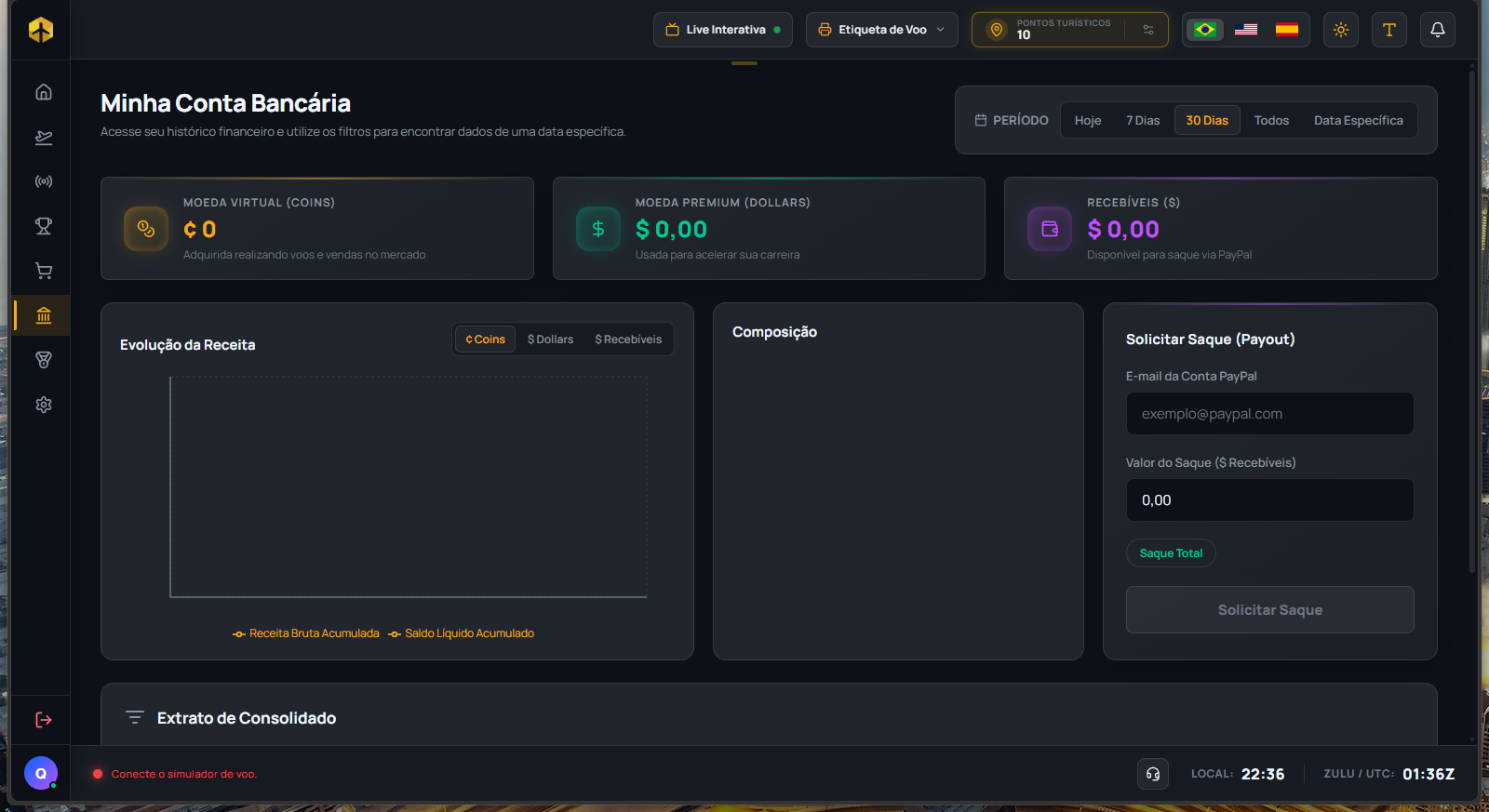
Your financial control center: the three balances, revenue charts, PayPal payout requests, and the full statement of everything that's ever gone in or out of your account. A period filter at the top (Today, 7 Days, 30 Days, All, or a specific date) affects the revenue chart and the statement — only Composition always stays on the full history, regardless of the filter.
Your three balances, the revenue charts, and the payout form, all on the same screen.
Your three balances
Three clearly separate currencies, each with its own purpose:
¢ Coins — the virtual currency, earned by flying and selling on the Market.
$ Dollars — the premium currency, used to speed up your career (buy aircraft, modules, ratings faster).
$ Receivables — the real money you've already earned (for example, selling Coins to other pilots) and can withdraw via PayPal.
Revenue charts
The "Revenue Evolution" chart shows two lines — Accumulated Gross Revenue and Accumulated Net Balance — in whichever currency you pick (Coins, Dollars, or Receivables). Right below, "Composition" is a pie chart showing where your money came from across your entire account history: Flying, Selling Coins, Controlling, or Instructing.
Requesting a PayPal payout
Fill in your PayPal email and the amount (or click "Full Withdrawal" to pull your entire Receivables balance at once), confirm, and that's it — your request enters the queue. There's a minimum amount required to withdraw, and payouts are always processed on the 25th of each month.
Full statement
A table with every transaction ever made on your account — ID, date/time, type, currency, amount, and description, all sortable by header (except ID). There's search (by ID, description, or type) and a choice of how many rows to show per page.
Settings
Your profile and your preferences, all here. Anyone with a purchased module (or an active VIP Trial) also gets an extra "My Modules" group in the sidebar, with its own tab for each one.
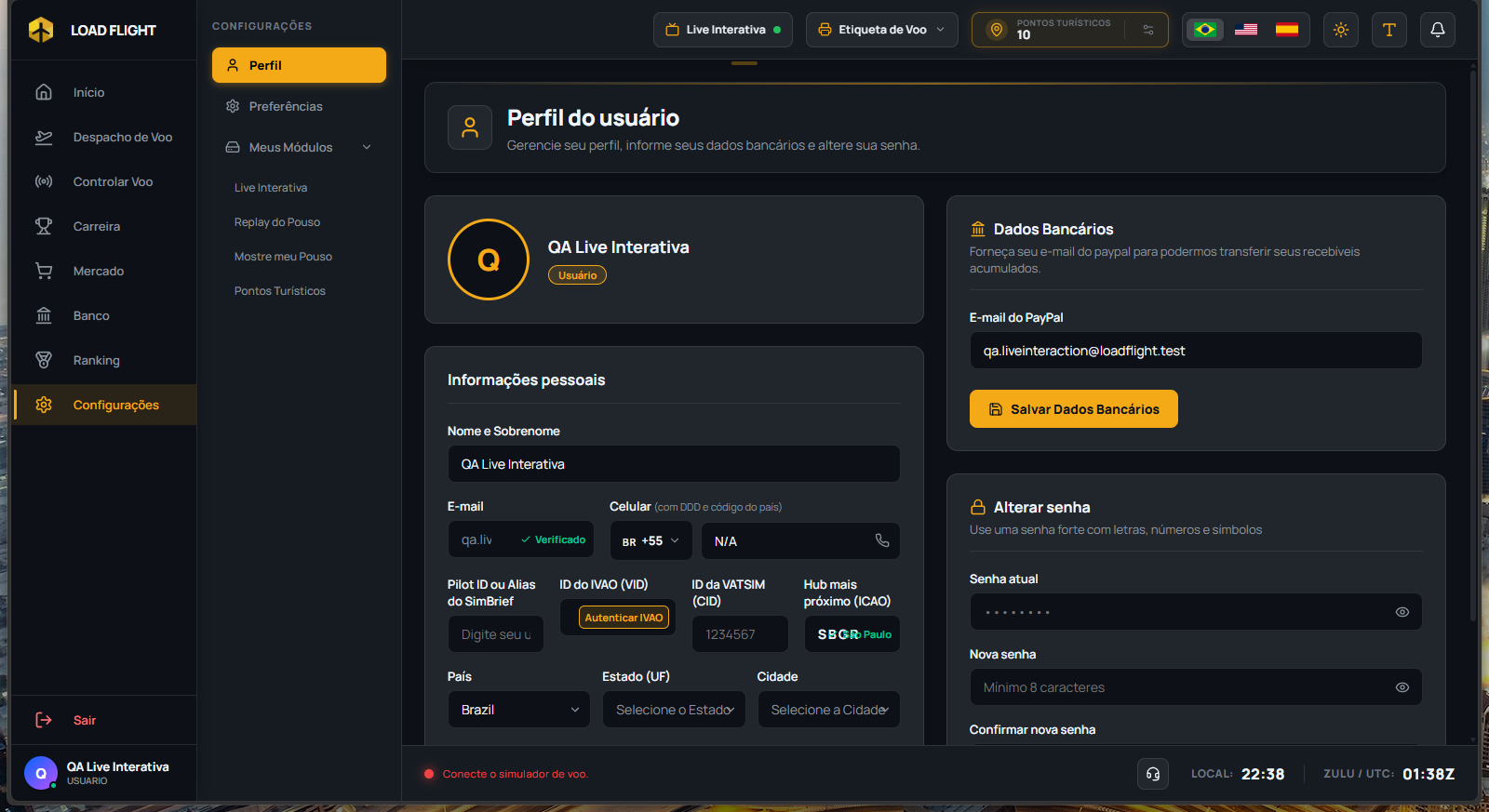
The Profile tab — personal information on the left, payment details and password change on the right.
Profile
Where your personal and payment details live:
Personal information — profile picture, name, email (not editable, already verified), phone, SimBrief username, home hub (ICAO), and location. Your IVAO ID (VID) links directly through IVAO, via an official login flow — you never type it in manually. Your VATSIM ID (CID) is a free numeric field, used to confirm your attendance at events.
Payment details — your PayPal email, used for withdrawals on the Bank page.
Change password — new password and confirmation, 8 characters minimum.
Affiliate Program
A card inside Profile for requesting to join the affiliate program. Once approved, your personal code shows up (with a copy button), how many pilots you've referred, and a direct shortcut to the commission statement on the Bank page.
Preferences
System language (Portuguese, English, or Spanish) and theme (Dark/Light), plus two switches you can turn on or off: showing what's new after each system update, and getting notifications even with the app closed.
My Modules
Every module you've bought on the Market gets its own settings tab here, visible only to whoever actually owns that module (or is inside a VIP Trial period, which unlocks all of them temporarily to try out).
Notifications
The bell icon in the header, present on every screen of the system, letting you know everything happening on your account in real time.
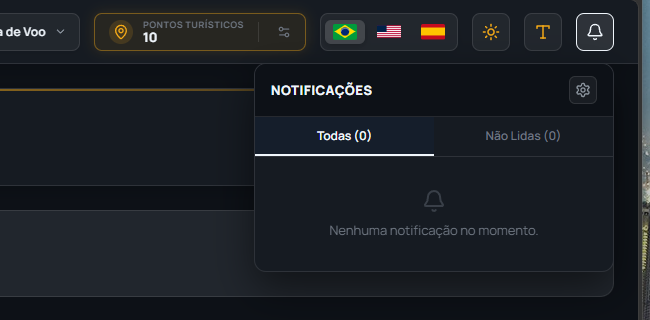
The notifications panel — All/Unread tabs and the gear icon to customize categories.
The bell
A red number shows how many notifications you haven't read yet, and a separate yellow dot warns you when a system update is available. Inside the panel, you can mark items read/unread, delete them one by one or clear everything at once, and filter between "All" and "Unread." Every new notification plays a sound — and some types (a team announcement, a support chat waiting on a reply, an event starting) play a second sound right after, to grab more attention.
Customizing what you receive
Clicking the gear icon in the panel lets you switch five categories on or off: Finances, Flights, System, Mobile Push, and Live Stream Invites (the last one is off by default — turn it on if you want to be notified when someone invites you to a live stream).
Support
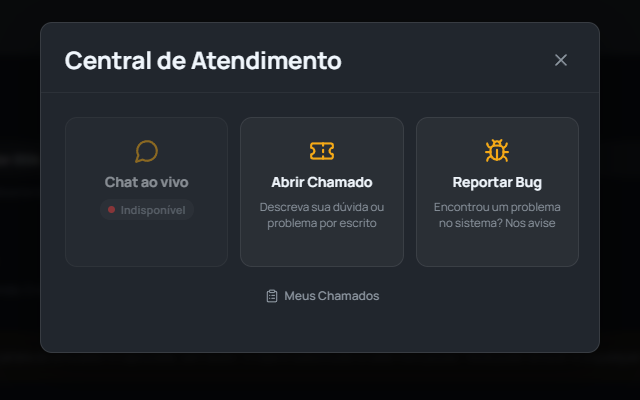
The headset icon in the bottom status bar — always within reach, on any screen — opens three paths: talk to someone right now in chat, open a formal ticket, or report a bug.
The Support Center — three options, plus the "My Tickets" shortcut below.
Live Chat
Real-time conversation with the team, in a floating window you can minimize without losing the conversation (it keeps receiving messages even minimized). If no one on the team picks up the chat within a few minutes, it automatically turns into a ticket — so your message doesn't get lost even outside support hours.
Open a Ticket
For requests that don't need an immediate reply: subject, category (financial, technical, account, question, or other), description, and up to 10 attached images. You get a tracking number (like LF-000123) by email — keep it.
Report a Bug
A direct channel to report technical problems: a description of what happened and up to 5 images, which you can attach by dragging a file in, picking one from your computer, or simply pasting a screenshot (Ctrl+V) right onto the screen. The report goes straight to the team's bug channel — it isn't logged as a ticket inside the app.
My Tickets
The list of everything you've ever opened, with status (Open, In Progress, Awaiting You, Resolved, Closed) and the full history of each conversation. If you reply to a ticket that's already closed, it reopens on its own.
Modules
Beyond the main pages, Load Flight has standalone modules — each sold separately on the Market (in Coins or Dollars) and turned on under Settings → My Modules. See below how each one works.
Automatic cabin announcements, just like a real airline — the system detects the flight phase and plays the right audio at the right moment (boarding, pushback, taxi, and so on), in the language of the country you're in, with nothing for you to press.
Pushback🔊 "Ladies and gentlemen, we are beginning pushback. Please remain seated with your seatbelt fastened."
Automatic language — detected from the airport you're at, covering practically anywhere in the world. You can use your own audio files too.
Only one audio at a time — if another module (like a Live Interaction donation alert) needs to play sound at the same time, the system queues them so they never overlap.
Cabin Audio with AI
The advanced version of Cabin Audio: instead of playing a fixed recorded audio, the speech is generated by AI on the spot, with the text changing based on the flight's real conditions — including mentioning the weather outside. Turning this version on automatically switches off the fixed-audio version, so the two never play at once.
Descent🔊 "We are beginning our descent to your destination. Expect some turbulence due to clouds in the area — please keep your seatbelt fastened."
Speech generated on the spot — every announcement is unique, written and narrated by AI from that specific flight's real data (clouds, rain, wind).
Replaces the standard Cabin Audio — the two modules don't play together; turning on the AI version automatically stops the fixed-audio one.
Landing Rate — descent rate and G-force on the spot
An overlay pops up on its own the moment you touch the runway, showing descent rate (FPM) and the G-force of the impact — and it's the G-force, not the FPM, that decides the rating: Excellent up to 1.10G, Normal up to 1.40G, Uncomfortable up to 1.60G, and Rough above that. The system ignores bounces (won't count a second touch within the next 5 seconds) and knows how to recognize a genuine go-around. A card in the header keeps your last landing, and you can test the overlay without even taking off.
Descent Rate-187 FPM
G Impact1.08 G
Excellent
Replica of the real overlay: pops up on its own the moment the aircraft touches the runway, with the rating calculated from G-force.
Detects the right monitor on its own
With multiple monitors, the system genuinely identifies which one has your simulator's window open and centers the overlay there — it's not a guess of "whichever screen doesn't have Load Flight," it's real detection of the running sim's window.
Testing without flying
A "Test Overlay" button in the module's settings generates a sample landing on the spot, just so you can check everything's working before heading to the real simulator.
Live Interaction — donations that move your aircraft
Your viewer pays a Pix donation on a link that's yours alone, and it becomes a real command inside the aircraft (via MobiFlight) plus an on-screen alert — all set up by you. A single button in the header turns the stream on and off: pulsing green when live, static red when not.
Rules Setup — you define, per aircraft profile, what each donation amount does (e.g. sound a horn, flash a light).
Implementation Settings — YouTube channel ID, split-screen link for viewers, and a test mode to simulate donations without anyone actually paying.
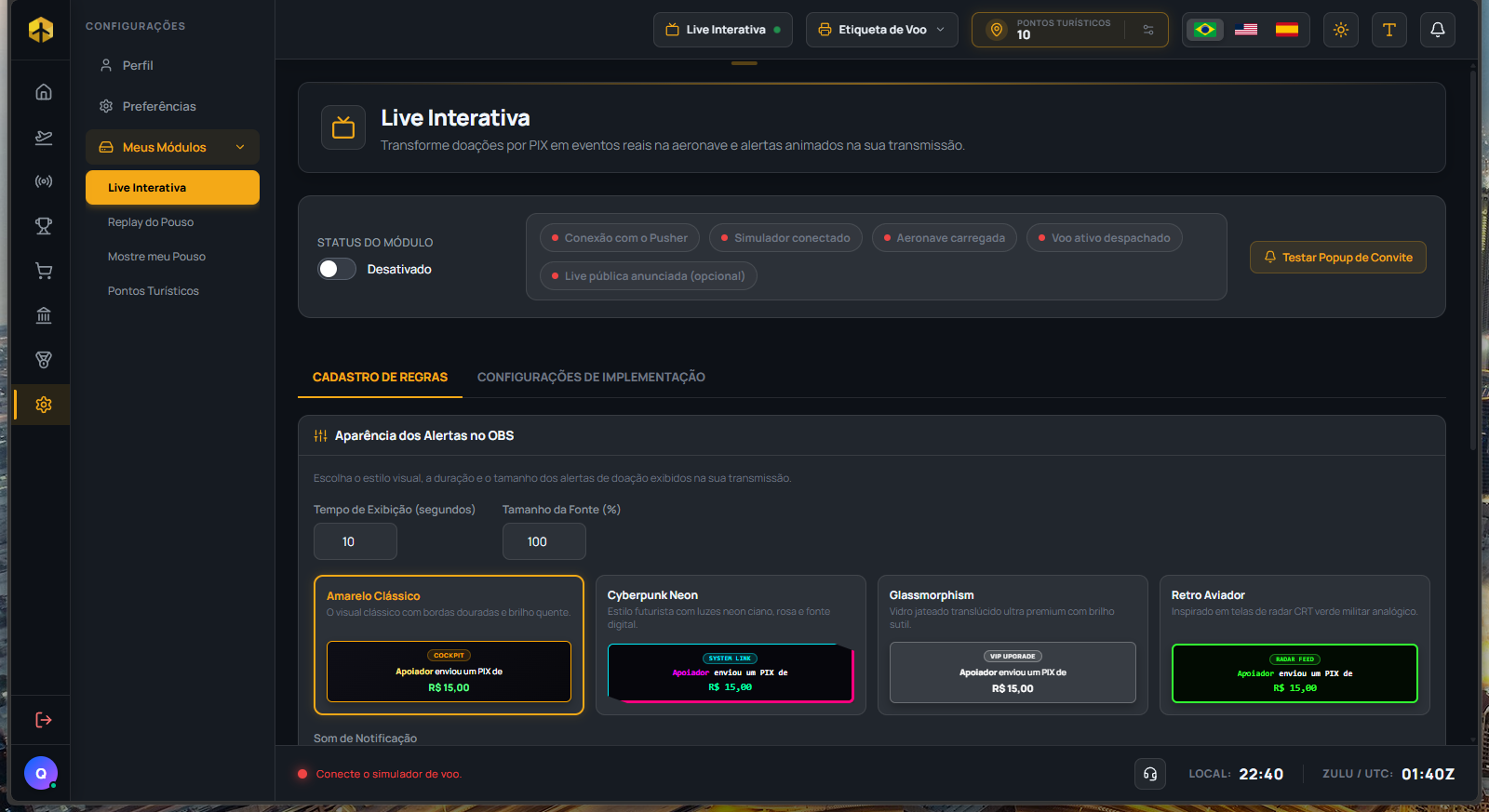
4 visual alert styles — Classic Gold, Cyberpunk Neon, Glassmorphism, and Retro Aviator, each with adjustable display time and font size.
One rule profile per aircraft — switching aircraft doesn't erase the rules you've already set up for it; each one keeps its own set.
The readiness checklist
Before announcing the stream, five indicators show in real time whether everything's ready: donation server connection, simulator connected, aircraft compatible with the registered rules, an active flight, and the stream already announced on YouTube. A "Test Invite Popup" button lets you see how the invite looks to viewers before actually going live.
Setting up Live Interaction — the status checklist on the left, OBS alert styles below.
Show My Landing — real video of your final approach
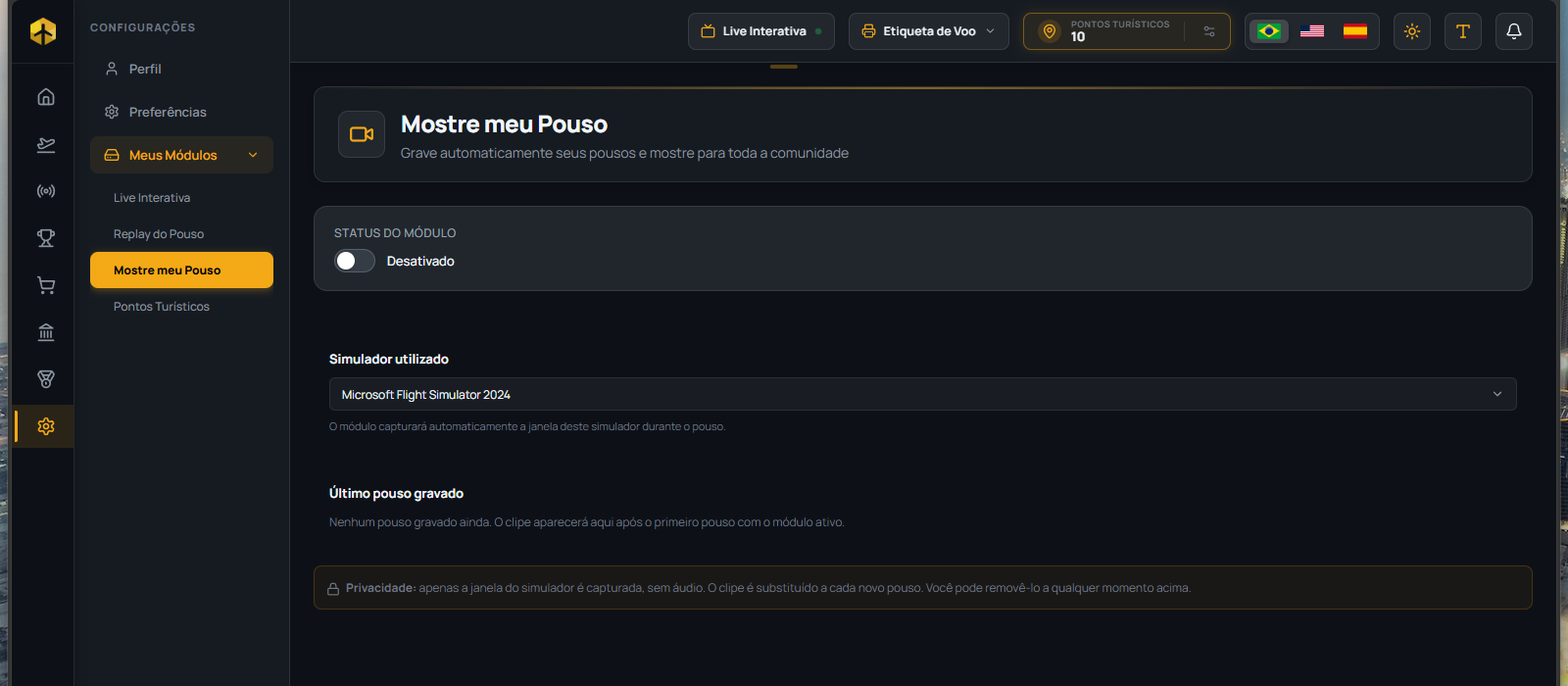
Records your simulator's screen (no audio, just the sim window) from the final approach straight through a few seconds after touchdown, and saves it as a clip — the newest always replaces the previous one. Works with MSFS 2020/2024 and X-Plane, and asks for your consent once before the first recording. Other pilots who also own this module can watch your latest landing straight from your card, in the Radar's Pilots Online list. You manage everything from Settings: watch, download, or delete the clip.
Turning on Show My Landing — pick your simulator, and the privacy note explains exactly what gets recorded.
Sandbagging
An operational support module: warns you when a real controller shows up near your route, and gives you an emergency button to close your network clients (IVAO/VATSIM) remotely from your phone.
ATC and top-of-descent alerts
While you fly with an imported flight plan, the system watches the network (IVAO and/or VATSIM, your choice) and warns you when a real controller enters your route's or destination's coverage area — each controller only triggers one alert, it doesn't keep repeating. It also warns you as you approach your flight plan's top-of-descent point, calculated straight from your own OFP.
A controller joined your routeSBGR_TWR — entered your route's coverage area.
Coverage radius changes by position type — Ground, Radio, and Tower cover 15nm around; Approach covers 50nm; Center and FSS cover 250nm (with an extra margin you can adjust).
You choose the networks — monitor just IVAO, just VATSIM, or both together, right from the module's settings.
Top-of-descent alert
Calculated from your own flight plan (the imported OFP), it warns you as you approach the point where you should start descending — the alert distance is configurable, between 10 and 200 nautical miles.
Panic button
Straight from your phone, a red button (with a confirmation before it fires) sends a signal to your computer to close your network connection clients (like vPilot or xPilot) remotely — handy if you need to leave the network fast and aren't sitting at your PC.
Panic button — hold to arm, tap again to confirm.
Touristic Points
Shows real tourist attractions in your flight's origin and destination cities, right on the Radar's map.
The map follows your route
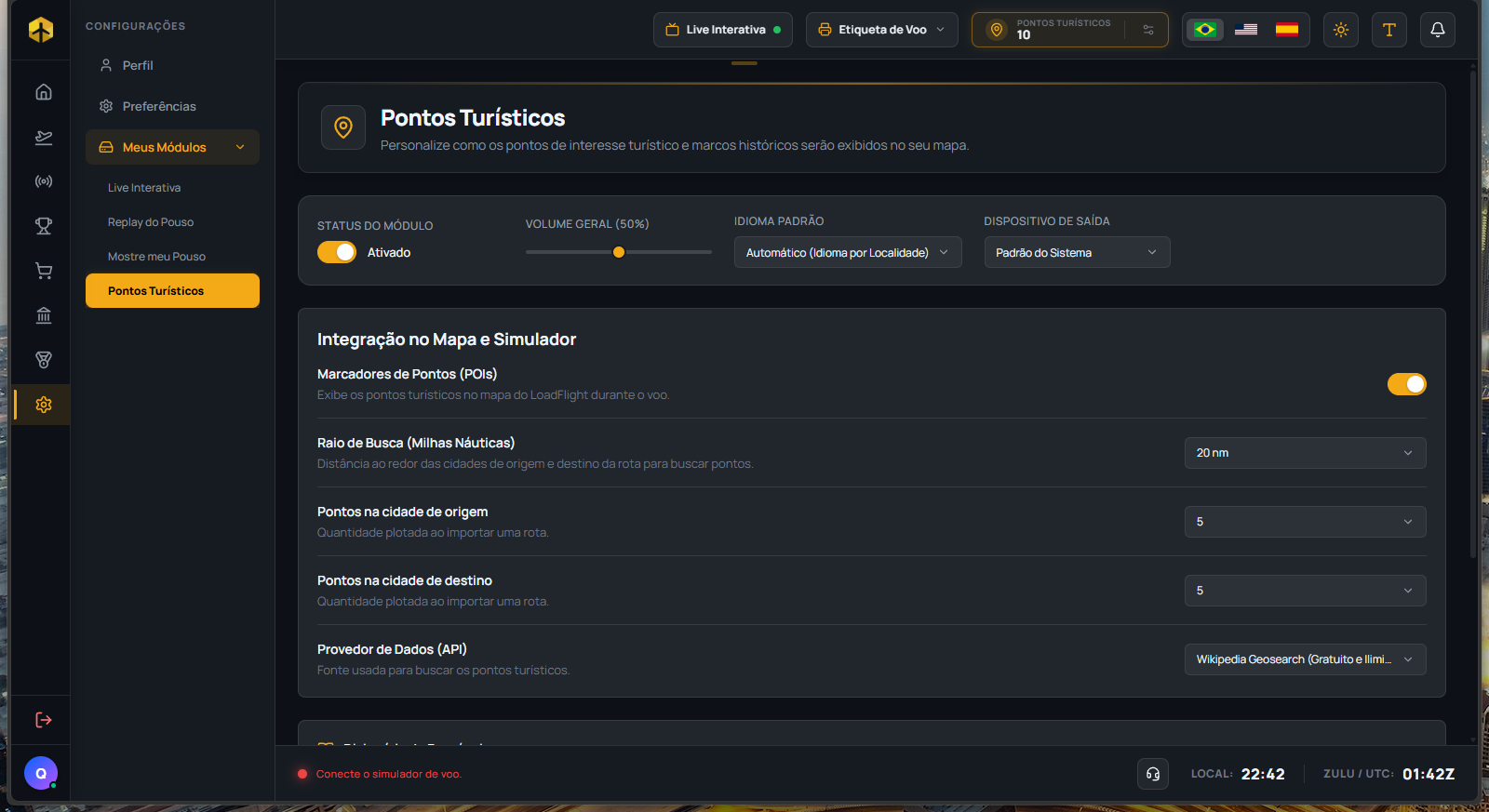
Points only show up after you import or generate a flight plan on Dispatch — the map draws your route (a dashed gold line) with a green pin at the origin and a blue one at the destination, and scatters tourist points around each city (a curated selection in some capitals, a real nearby-attraction search everywhere else). Clicking the airport pin opens a card with a photo, summary, and real country/city data — population, language, currency, and a live dollar exchange rate.
Customizing the module — search radius, points per city, and the data provider used.
Voice narration, on demand
Every tourist point has a "Listen" button that narrates the place's history out loud — you always choose to click it, it's not an automatic narration triggered by your aircraft's position. The audio plays through whichever sound device you pick in the module's settings.
Thermal Printer
Prints your flight ticket on a real thermal printer — just like a genuine airline pilot briefing, straight off the paper.
Flight Ticket, always at hand
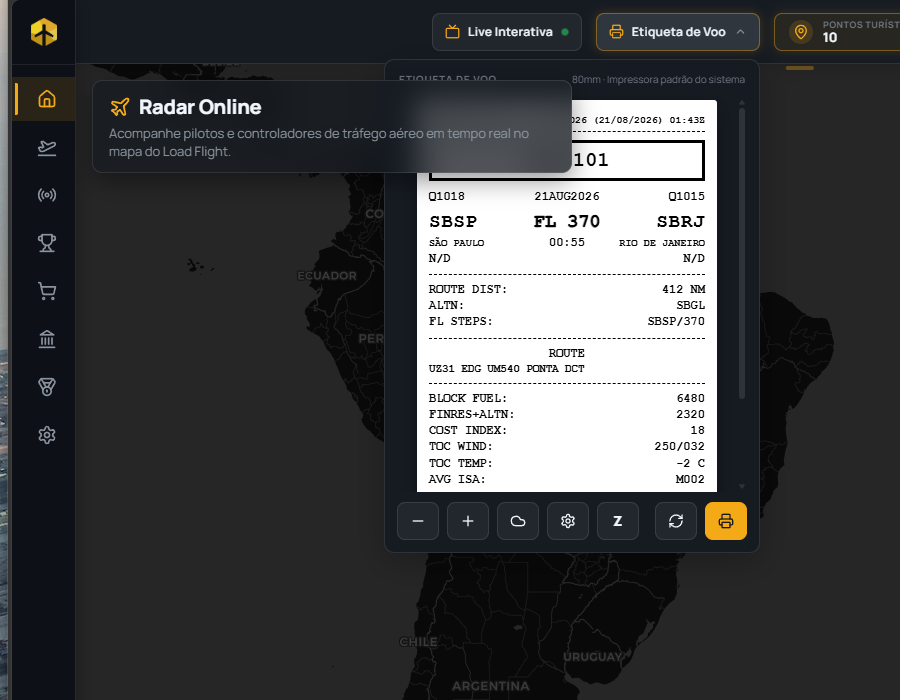
A card in the header shows the ticket ready as soon as you import or generate the flight plan on Dispatch — this card doesn't import anything on its own, it just uses what's already been imported there. You can switch between the flight plan page and the METAR page, zoom in, toggle between Zulu and Local time (your choice stays saved forever on this computer), and send it to the printer with one click.
The real Flight Ticket, with route, fuel, cost index, and the weight table — ready to print.
Setting up your printer
Choose the paper width (80mm, 50mm, or 48mm) and the physical printer, automatically detected among the ones installed on your Windows. For counter-style thermal printers that go into power-saving mode, there's a switch that wakes it up on its own before every print — with a button to test whether it's working.
Landing Replay — relive the landing from inside the simulator itself
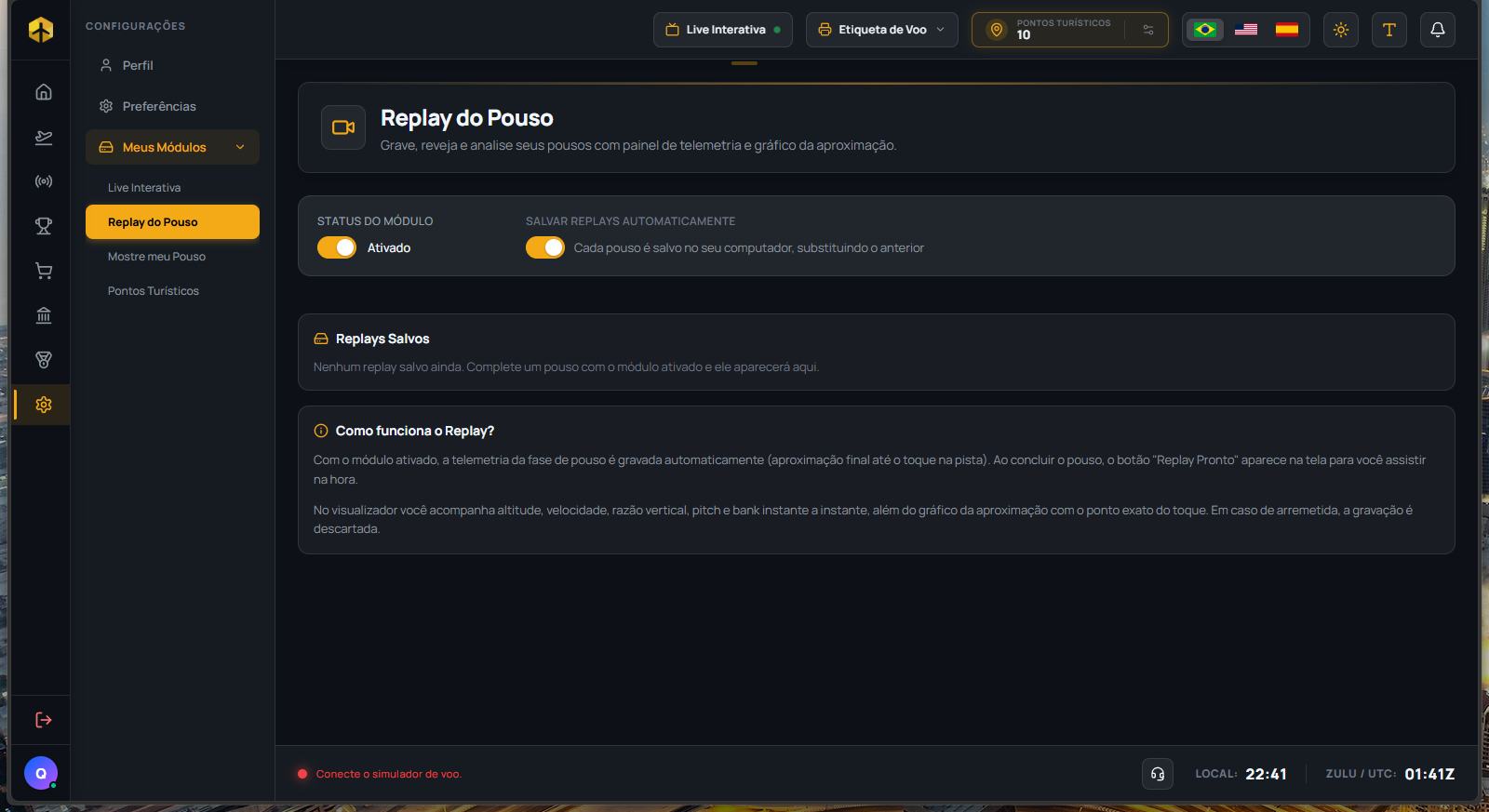
Different from the module above: here you don't export a video, you go back in time inside the simulator ITSELF — the last few minutes of the approach get recorded, and after touchdown you scrub freely through the timeline (with speed control and an approach chart) while your aircraft gets genuinely repositioned in the sim. On MSFS, physics lock and you can freely switch cameras. It only works on MSFS — X-Plane doesn't have the phase engine needed to trigger the recording. And for safety, it never repositions your aircraft during a genuinely dispatched flight, so it doesn't accidentally zero out your reward.
Landing Replay turned on — it explains exactly what gets recorded, and where "Replay Ready" shows up after touchdown.
Load Cameras — cinematic views for your flight
Exclusive to Microsoft Flight Simulator 2024
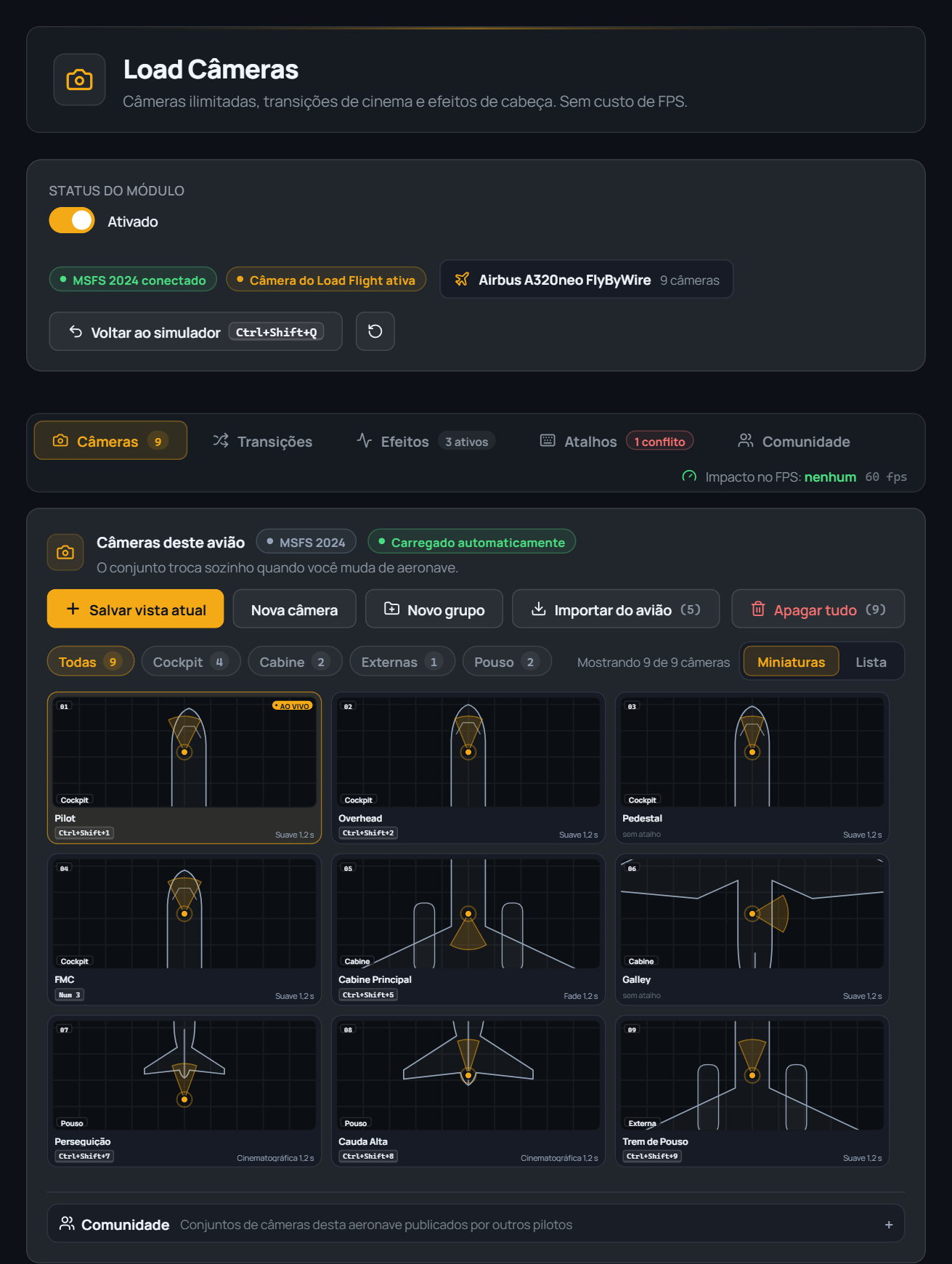
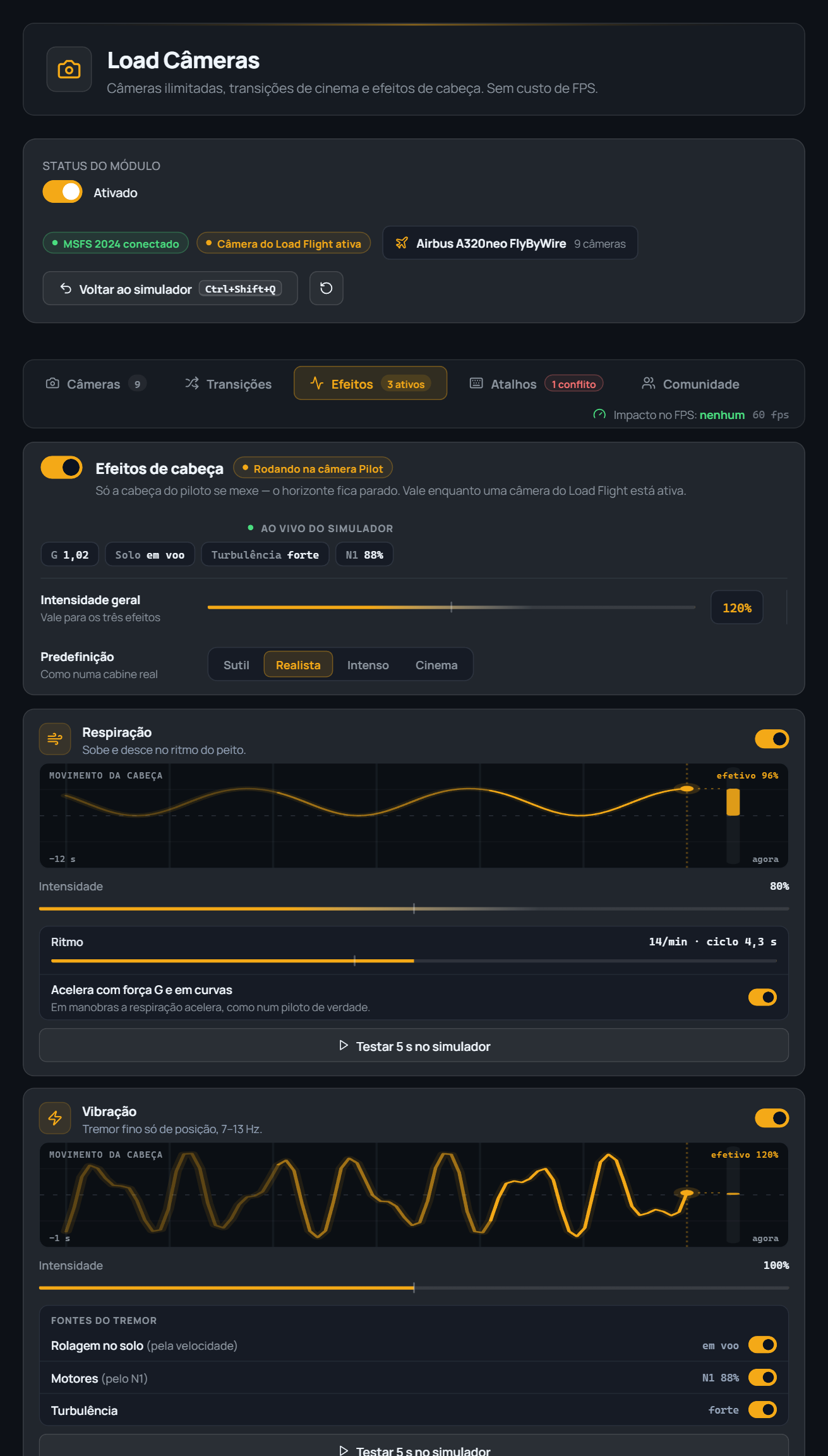
Unlimited cameras for every aircraft — cockpit, cabin and external — with cinematic transitions, head effects and hotkeys that are fully yours, keyboard or joystick. The set switches on its own when you change aircraft, and never costs an extra FPS: the camera updates every simulator frame with no measurable performance impact, measured live right inside the module.
The current aircraft's library, filterable by Cockpit/Cabin/External/group, each thumbnail showing the camera's real position over the aircraft silhouette — and the selected camera's editor, always visible right below the grid.
Create cameras your way
Frame the view in the simulator with your usual controls and click "Save current view" — the app reads the camera position instantly. Or use "Import from aircraft" to bring in every camera the aircraft itself already defines (pilot, overhead, FMC, tail…). "Duplicate" copies a ready camera to tweak from there, and "Delete all" clears the current aircraft's set in one click — always with a confirmation first.
Groups and organization
Besides the three automatic groups (Cockpit, Cabin, External), you create your own — "New group" is ALWAYS born with a copy of the selected camera (or a new camera), never moving a camera you already had in another group. On aircraft with a dozen-plus cameras — common on complex airliners — groups are what separates "find the right camera in 2 seconds" from scrolling a giant list every time.
The editor: live fine-tuning
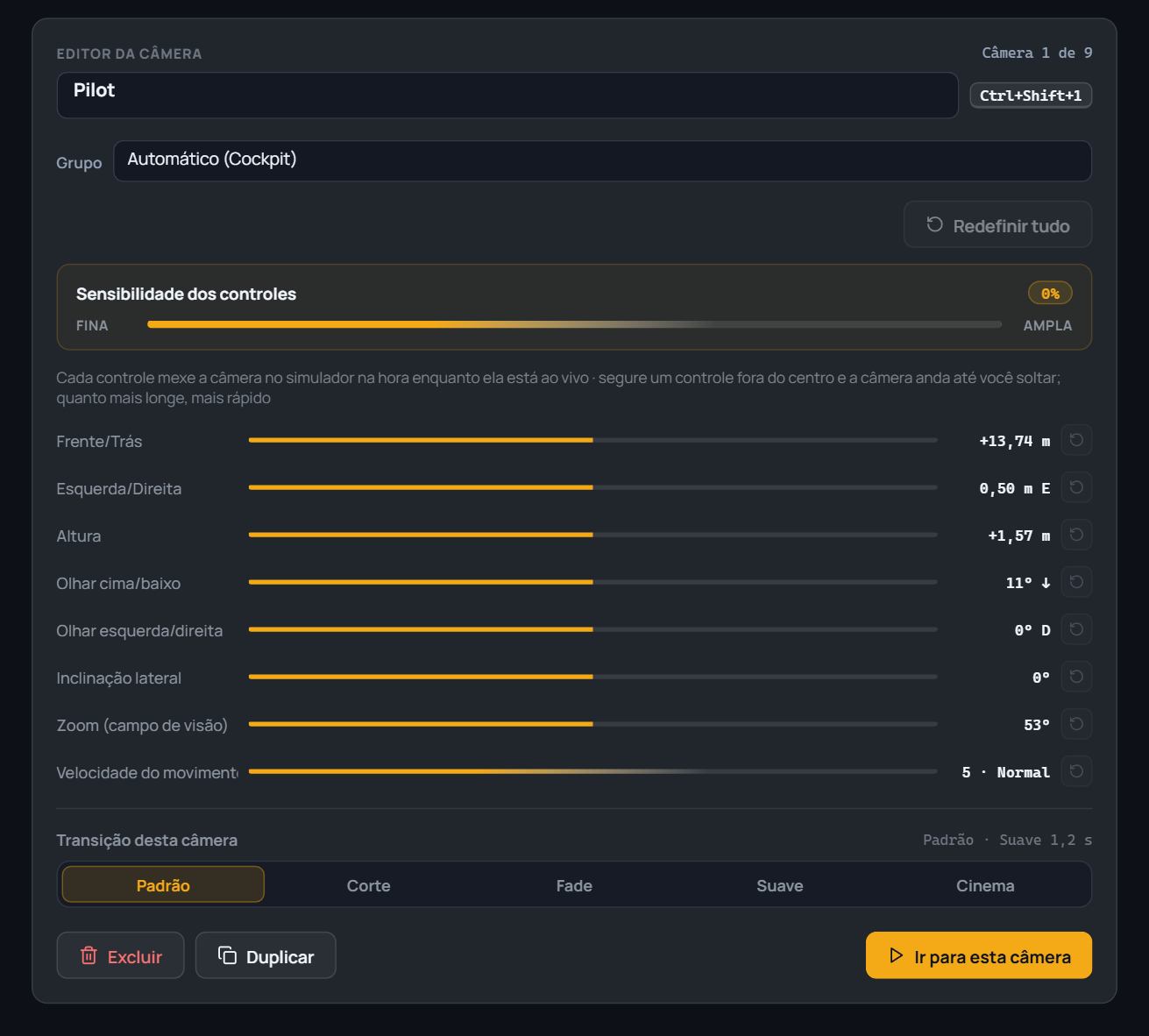
With the camera active in the simulator, every control in the editor moves it LIVE: position (forward/back, left/right, height), where it looks (up/down, left/right, roll), zoom (field of view) and movement speed — from 1 (fine, ideal for millimeter adjustments) to 10 (wide, to cover long distances fast). Holding a control away from center makes the camera keep moving until you let go — the farther from center, the faster. Each camera also picks its own transition (or uses the aircraft's default) and has "Reset all", which returns exactly to the state from when you selected that camera.
A camera's full editor: control sensitivity, fine-tuning with exact meter/degree readouts, and that specific camera's transition (or "Default", following the aircraft's general rule).
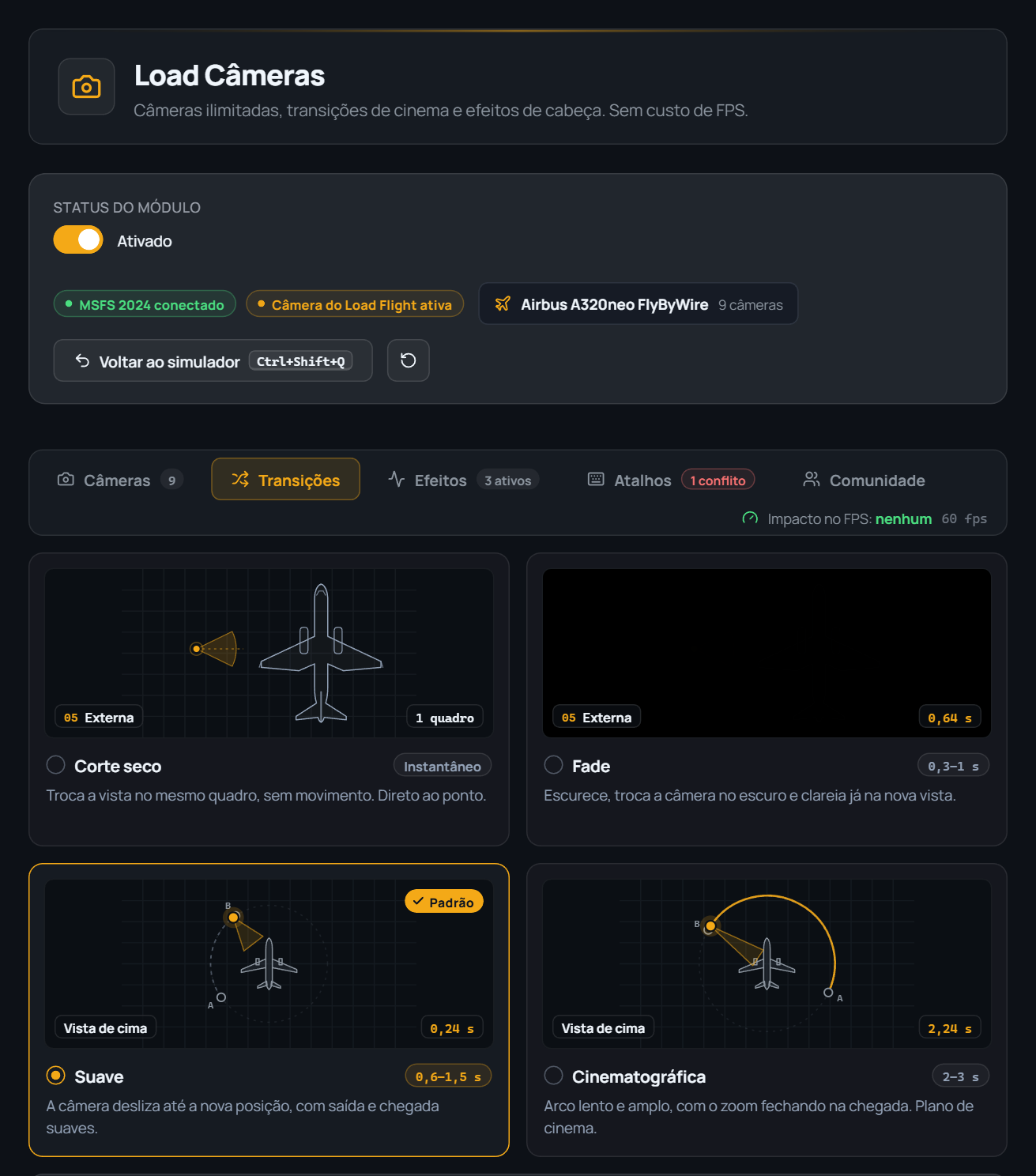
Four cinematic transition styles
Hard cut switches on the same frame, no movement — straight to the point. Fade darkens the screen, switches the camera in the dark and brightens on the new view. Smooth glides to the new position, with a smooth start and end — the recommended default. Cinematic does a slow, wide arc with the zoom closing in on arrival — a real cinema shot, built for externals on landings and takeoffs.
Every style comes with a small top-down diagram showing exactly how the camera moves — no guessing what "smooth" or "cinematic" actually do.
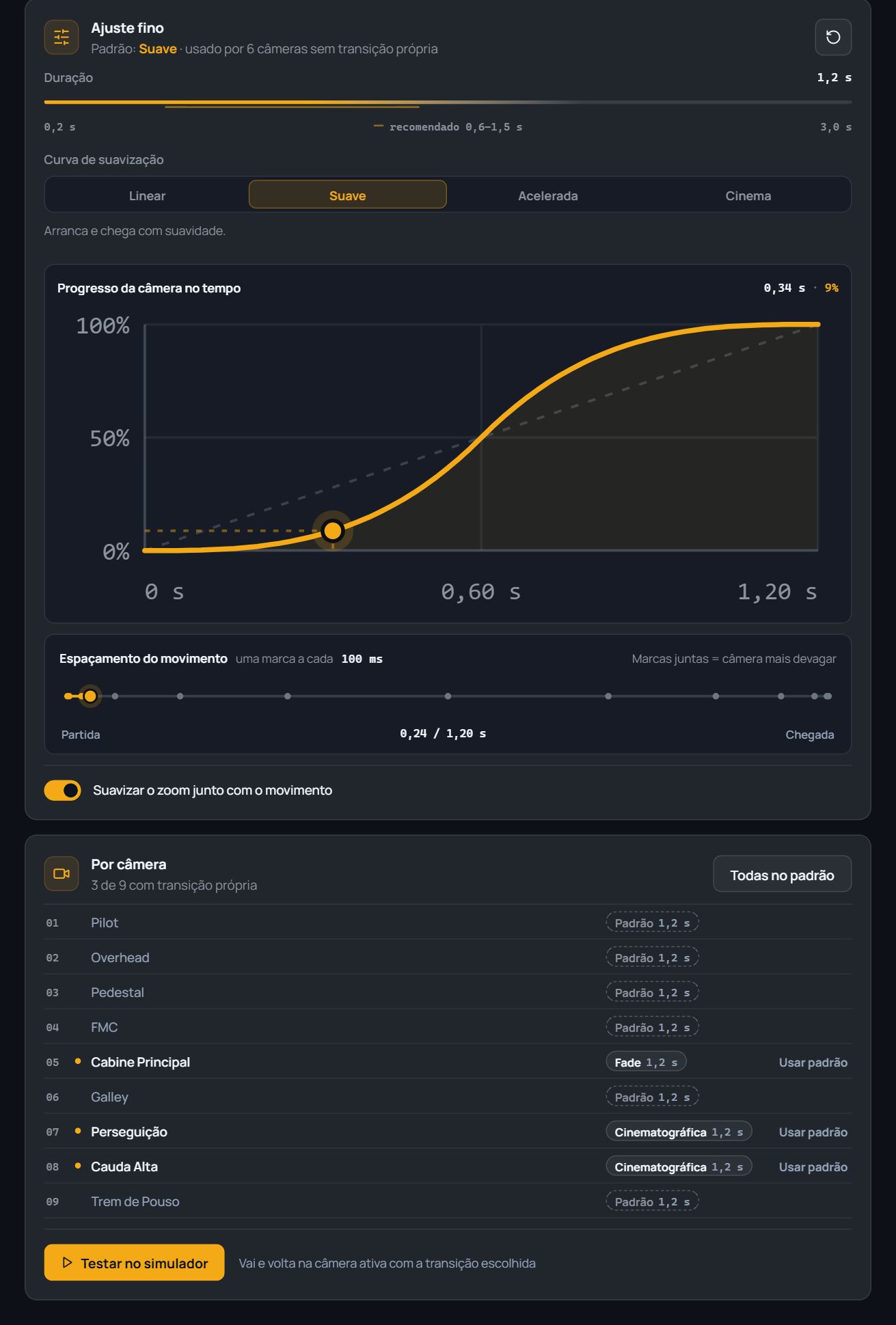
The aircraft's default duration and easing curve are adjustable with a live graph of the camera's progress over time — drag the point on the curve and see exactly which instant corresponds to which percentage of the path. Every camera also shows up in the "Per camera" list with one click to use a different transition than the default, or "Use default" to go back.
The "Camera progress over time" graph shows the real curve — here, Smooth starts slow, speeds up in the middle and slows down on arrival. Below, every camera with its own transition is marked with a gold dot.
Head effects, read live from the simulator
It's the pilot's head that moves — the horizon stays still. Breathing rises and falls with the chest's rhythm (adjustable rate, speeds up with G-force and in turns if you want). Vibration is a fine positional tremor, between 7 and 13 Hz, with three independent sources: ground roll, engines (by N1) and turbulence. Every effect has its own intensity and a live graph — "effective 96%", for example — showing exactly what is happening to the camera right now, read straight from the flight's real telemetry (G-force, N1, turbulence).
The "LIVE FROM THE SIMULATOR" badges show the real data feeding the effects at that instant — G-force, whether on the ground, turbulence and engine N1.
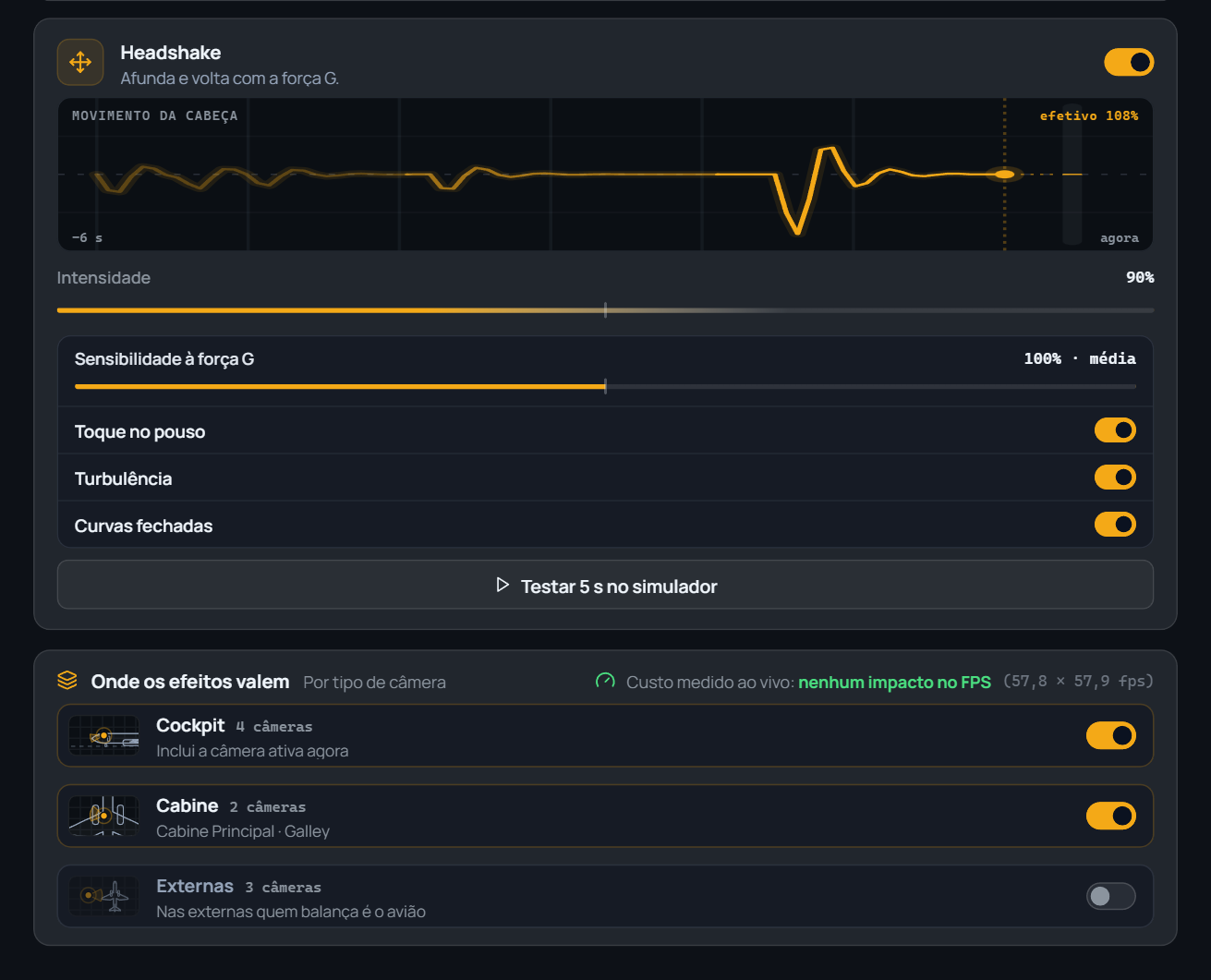
Headshake dips and returns with G-force — the jolt of touchdown, strong turbulence or a tight turn, each trigger switchable on its own. And the effects only apply to the camera TYPES you choose: by default cockpit and cabin yes, external no (on externals, the aircraft itself already does the shaking) — with the FPS cost measured live, not estimated.
"Where effects apply": you choose by camera type, and the card shows the REAL impact measured in FPS (here, zero) — not a generic estimate.
Fully yours — keyboard or joystick
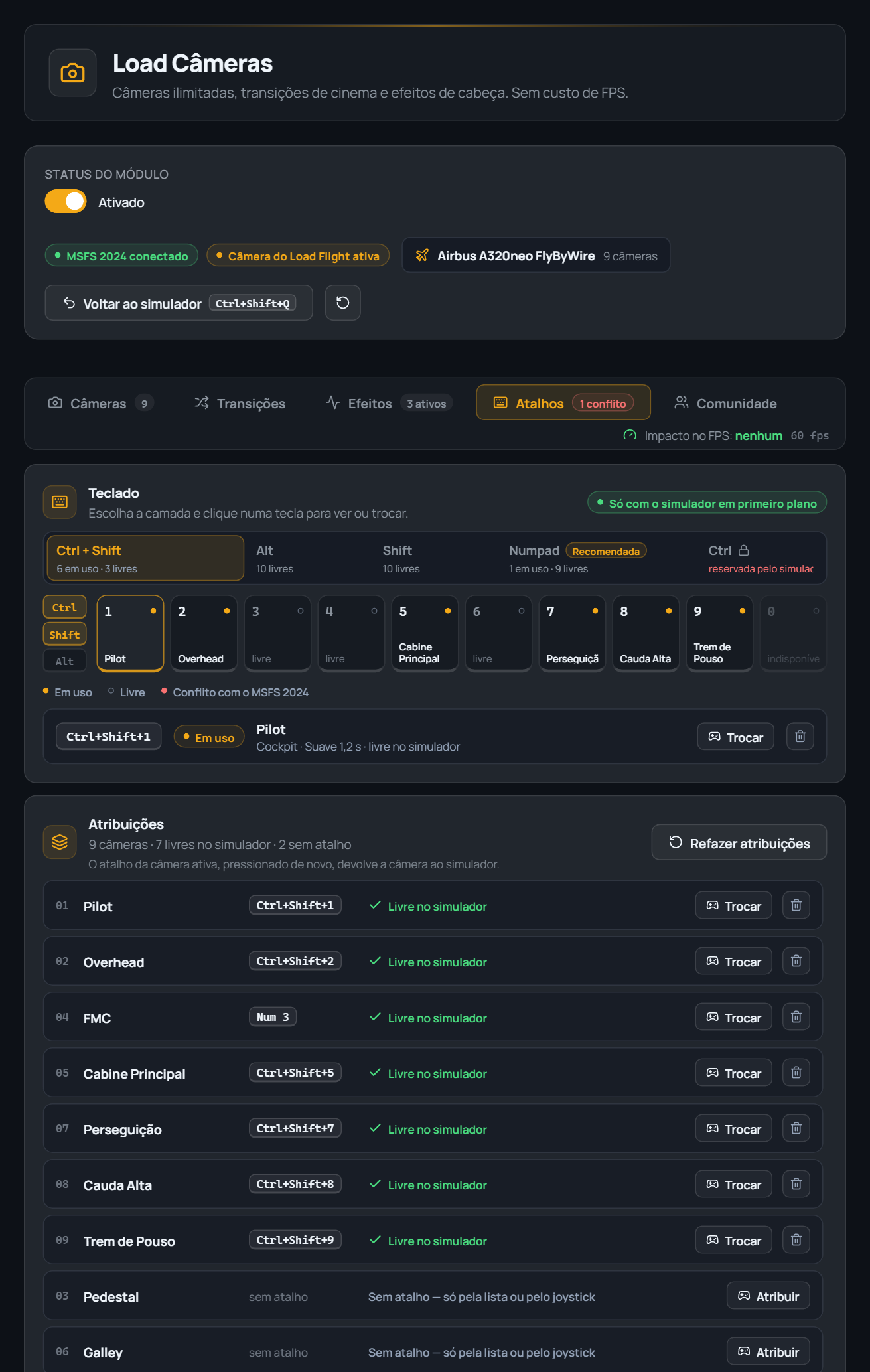
No hotkey is ever assigned on its own: you choose every combination. The layer selector shows, for each one (Ctrl+Shift, Alt, Shift, Numpad, Ctrl), how many keys are already in use and how many are free — plus a visual numpad where every key shows whether it's free, in use or clashing with a native shortcut of that simulator edition. The "Assignments" list summarizes all 9 cameras at once: which one has a hotkey, which is free in the simulator (no risk of stealing a key the sim already uses) and which still has nothing — with "Redo assignments" to start over, always asking for confirmation first.
The visual keyboard shows the whole layer at once — a gold dot means "in use", empty means "free", red would mean a clash with the simulator itself.
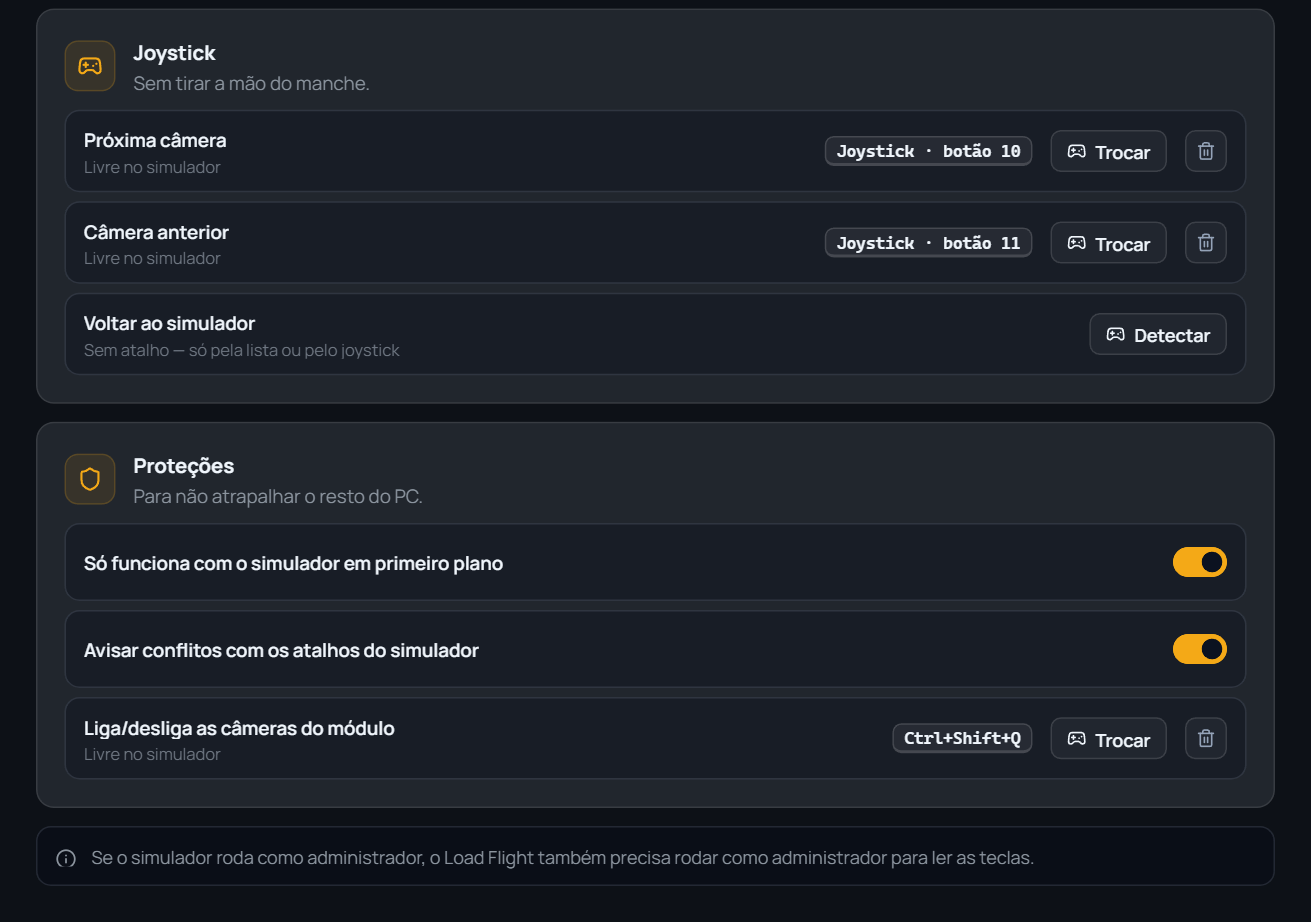
Without taking your hand off the stick: next camera, previous camera and back-to-simulator also go on the joystick. And Protections cover the rest: only works with the simulator in the foreground (never steals a key from another program), warns if a hotkey clashes with the simulator, and the module's OWN on/off hotkey (Ctrl+Shift+Q by default) is customizable just like any other.
The module's on/off hotkey shows up in the Protections list like any other — click "Change" and record whatever combination you want.
The module steps aside on its own
If you enter the simulator's drone mode, switch to its external/cockpit view or activate slew, Load Cameras notices instantly, disarms itself and hands control back to the simulator — no native-view "flash" fighting our camera. As soon as you leave that mode, it re-arms on its own and returns with a hard cut to EXACTLY the camera you were on.
Drone detectedLoad Cameras stepped out of the way automatically. It re-arms on its own once drone mode ends.
Opens armed, the way you left it
If you left the "Module status" switch enabled last time, Load Cameras already opens armed as soon as Load Flight starts — no need to press Ctrl+Shift+Q again every flight. And with the module armed, the simulator's OWN camera keys get blocked automatically: no native key can "steal" the view by accident while a module camera is in control.
Community: download ready-made sets
In the Community tab you can publish the camera set you built for an aircraft and download other pilots' sets — hotkeys come along too, and "Use" never mixes with cameras you already configured: it writes a fresh copy, respecting what you already had. A great starting point for an aircraft you just bought.
Live Overlay — the visual layer for OBS
A separate module, with its own capture window for OBS: a live telemetry bar (altitude, speed, route) and up to two rotating sponsor-banner groups (image or video, up to 300MB each). Any adjustment you make applies instantly, no need to reload the browser source in OBS.
AltitudeFL 370
Speed452 KT
Heading087°
RouteSBSP → SBRJ
Sponsor banner space
The telemetry bar that shows up on your stream, with the rotating banner space right below it.
Rotating banners in two independent groups
Each group cycles through its own images or videos (up to 300MB per file, accepts PNG, JPEG, GIF, and MP4), with a configurable timer for how long each banner stays on screen, custom sizing, and an aspect-ratio lock so images don't stretch.
Applies live, no restart needed
The "Apply Live" button pushes any change straight to the OBS browser source instantly — no reload needed. And your settings are saved to your account, not just this computer, so they survive a reinstall or a PC switch.
VIP Trial
A free, invite-only trial period that unlocks the full system experience for a while — so you can try it out before deciding what's worth actually buying.
You received a VIP Trial invite — 15 days of full access!
What VIP Trial unlocks
For the 15-day period, every aircraft, license, and module in the Market shows up unlocked for you to use and try — no need to buy anything beforehand.
What stays out
Flights made during VIP Trial don't genuinely count: they don't earn Coins or XP and don't enter your history or ranking — it's a period for trying the system, not for progressing in it. You also can't buy Coins, aircraft, modules, or licenses while the trial is active (events and ads stay purchasable as normal). When the period ends, a prompt takes you straight to the Market, in case you want to actually buy what you tried.

 Português
 English
 Español